Using a Mouse: Point, Click, Drag, Drop
Watch this topic in 60 seconds
Free preview · Lesson 1
Understanding Using a Mouse: Point, Click, Drag, Drop
Mouse Masterclass: Point, Click, Drag, Drop for 5th Graders!
Hey future tech wizards! Have you ever wondered how people tell a computer what to do? It's not magic, it's often with a super helpful little tool called a mouse! Think of your computer mouse like a special remote control for your computer screen. Just like you use a remote to change channels on a TV, you use a mouse to tell your computer what programs to open, where to type, or which pictures to look at.
What is a Computer Mouse?
A computer mouse is a small device that fits in the palm of your hand. It helps you move something called a cursor (or pointer) around on your computer screen. This cursor is usually an arrow, but sometimes it can look like a little hand, a text-typing line (called an 'I-beam'), or even a spinning circle when the computer is thinking!
Imagine your computer screen is a big chalkboard, and the mouse is your hand holding the chalk. Wherever your hand moves the mouse on your desk, the chalk (cursor) moves on the chalkboard (screen)!
Holding the Mouse Like a Pro
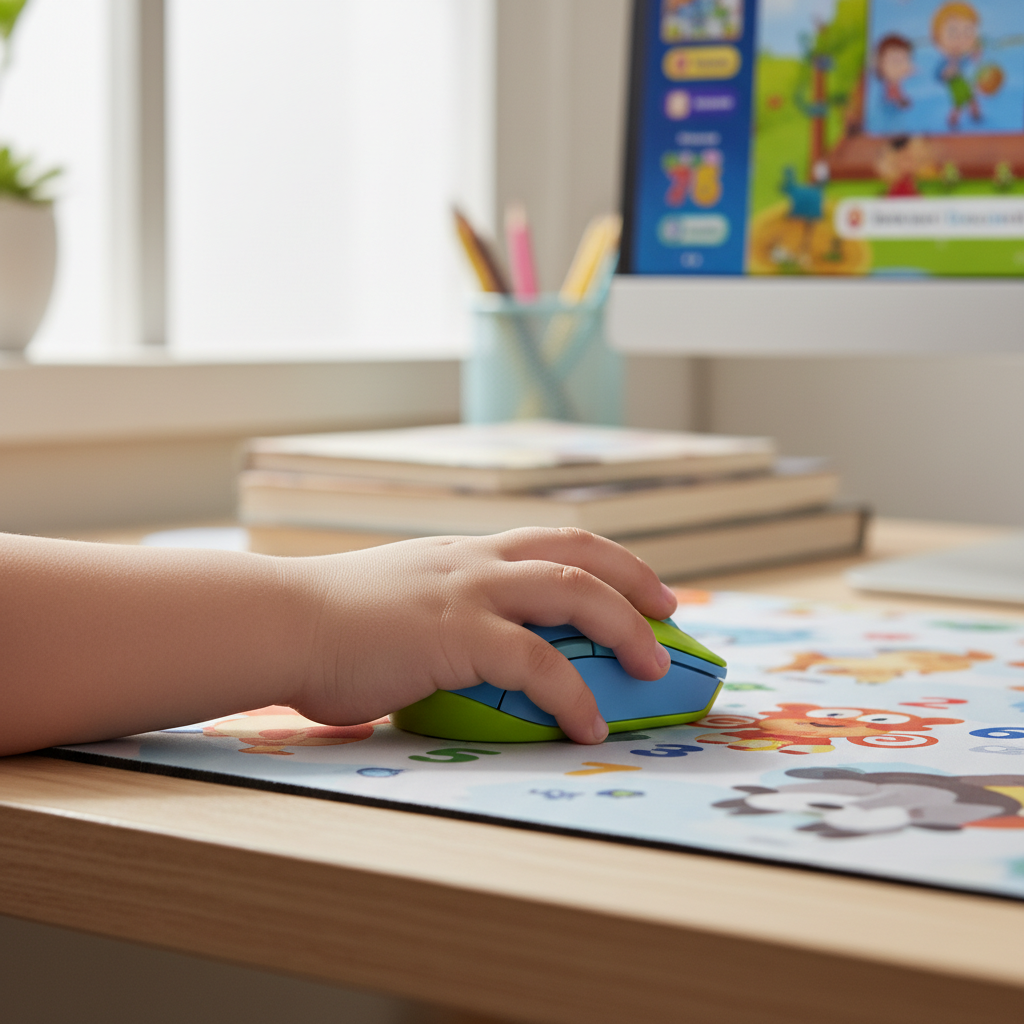
Before we learn the cool moves, let's make sure you're holding the mouse correctly. This is super important for comfort and control!
- Place your whole hand over the mouse.
- Your index finger (the one you point with) should rest on the left button.
- Your middle finger should rest on the right button.
- Your thumb and other fingers gently grip the sides of the mouse.
- Your wrist should ideally rest flat on the desk or a mousepad, not bent too much up or down.
Think of it like holding a toy car – you want a firm but relaxed grip so you can steer it smoothly.
The 4 Big Moves of Your Mouse
There are four main things you'll do with your mouse to interact with your computer. Let's explore each one!
1. Pointing (or Hovering)
What it is: Pointing means moving the mouse on your desk so that the cursor on the screen moves to exactly where you want it to be. You're just aiming the cursor at something interesting, like an app icon, a button, or some text.
How to do it: Gently push and pull your mouse across your mousepad or desk. Watch the cursor on the screen. If you move the mouse to the right, the cursor goes right. Up, it goes up! Practice moving the cursor to different corners of your screen, then try to land it on specific small items.
Analogy: Imagine you have a laser pointer, and you're trying to shine the red dot on a specific spot on the wall. You move your hand with the pointer, and the dot on the wall moves too. That's exactly what pointing with a mouse is like!
When you use it: You point before you click, drag, or do anything else! It's the first step to telling your computer where to focus.
2. Clicking (Left-Click)
What it is: Clicking (usually a 'left-click') is like pressing a button to make something happen. It's how you select items, open programs, or activate buttons.
How to do it: First, point the cursor to the item you want to click. Then, gently and quickly press down and release the left button of the mouse with your index finger. You'll hear a little 'click' sound!
Two Kinds of Left-Click:
- Single Click: Press and release the left button once. This is usually used to select an item (like highlighting a file) or to press a button on a webpage.
- Double Click: Press and release the left button twice very quickly. This is often used to open a program or a file (like starting a game or looking at a picture).
Analogy: Think of a single click like tapping a friend on the shoulder to get their attention. A double click is like knocking on a door twice quickly to open it and go inside!
When you use it: To open your favorite game, choose an answer on an online quiz, or select a word in a document.
3. Right-Clicking
What it is: While the left-click is for selecting or opening, the right-click is like asking for 'more options' or 'a secret menu.' It shows you extra things you can do with whatever you've pointed at.
How to do it: Point your cursor at an item, then press and release the right button of the mouse with your middle finger. A small menu will usually pop up on the screen.
Analogy: If a left-click is like ordering a regular burger, a right-click is like asking the server, "What other toppings can I get with this?" It reveals hidden choices!
When you use it: To save an image from the internet, change the background of your desktop, or copy/paste text.
4. Dragging and Dropping
What it is: Dragging and dropping is like picking something up on your screen, moving it to a new spot, and then letting it go. It's how you move files, rearrange icons, or draw shapes.
How to do it:
- Point the cursor at the item you want to move.
- Press and HOLD DOWN the left mouse button. Don't let go!
- While still holding the button down, drag the mouse across your desk to move the item to its new location on the screen.
- Once the item is exactly where you want it, release the left mouse button. This is the 'drop' part!
Analogy: Imagine you have a toy block on the floor. You pick it up (point and hold left-click), carry it across the room (drag), and then put it down in a new spot (drop). That's exactly what dragging and dropping is for your computer!
 ⚠️ This picture may have spelling mistakes. Trust the words in the lesson.
When you use it: To move a picture to a different folder, rearrange the icons on your desktop, or draw a picture in a drawing program.
Bonus Mouse Feature: The Scroll Wheel
Many mice have a little wheel between the left and right buttons. This is called the scroll wheel. It's super handy for moving up and down long documents or webpages without having to click tiny scroll bars.
How to use it: Just roll the wheel forward with your index finger to scroll down the page, and roll it backward to scroll up!
Analogy: Think of it like turning a tiny crank to reel a fishing line in or out, making the page go up or down.
Practice Makes Perfect!
The best way to become a mouse master is to practice! Try these things:
- Open a simple drawing program and try to draw shapes using drag-and-drop.
- Go to a safe kid-friendly website and click on different links and pictures.
- Try to move icons around on your desktop (ask a grown-up if you're not sure how!).
With a little practice, you'll be navigating your computer like a pro in no time!
Keep learning, free
Create a free Syllabax account to unlock practice questions and games for this topic.
Visual Learning Enhanced! 🚀
To help you master this topic, we use Advanced Syllabax AI to generate detailed diagrams and visual models.
Note on Visuals: The AI sometimes makes spelling errors in image labels. Please refer to the lesson text for the correct terminology.