Introduction to Spreadsheets
Watch this topic in 60 seconds
Free preview · Lesson 1
Understanding Introduction to Spreadsheets
Introduction to Spreadsheets: Your Digital Organizer and Calculator
Welcome to the fascinating world of spreadsheets! Imagine having a super-powered digital notebook that not only lets you write down information but also automatically organizes it, performs complex calculations, and helps you make sense of large amounts of data. That's exactly what a spreadsheet is! For 10th graders, understanding spreadsheets is like learning a secret language that helps you manage everything from your personal budget to tracking project deadlines and even analyzing scientific data.
Think of a spreadsheet as a magic grid paper. Instead of just drawing lines, this grid paper can store numbers, words, dates, and even do math for you instantly!
What is a Spreadsheet Program?
A spreadsheet program (like Microsoft Excel, Google Sheets, or LibreOffice Calc) is a software application designed to organize, analyze, and store data in a tabular format. 'Tabular' just means it uses tables, which are made up of rows and columns. It's a fundamental tool in almost every industry today.
The Building Blocks of a Spreadsheet
Let's break down a spreadsheet into its core components. Understanding these terms is crucial, just like knowing the letters of the alphabet before you can read a book.
1. Workbook and Worksheet
-
Workbook: This is the entire file that you save. It's the main container for all your work.
Imagine a physical binder or a thick notebook. The entire binder, with all its pages, is like your workbook.
-
Worksheet: Inside a workbook, you'll find one or more worksheets. Each worksheet is a single page within your workbook, identified by a tab at the bottom (usually named Sheet1, Sheet2, etc.). You can switch between them, add new ones, or rename them.
If the workbook is your binder, then each individual sheet of paper inside that binder is a worksheet. You might use one sheet for homework, another for your schedule, and another for your budget.
2. Cells, Rows, and Columns
This is where the real data lives! A worksheet is a giant grid.
-
Column: These are the vertical lines of boxes on your worksheet. They are identified by letters (A, B, C, ..., AA, AB, etc.) at the top.
Think of columns like the compartments in a locker room. Each locker goes from top to bottom, and they are usually labeled with letters.
-
Row: These are the horizontal lines of boxes on your worksheet. They are identified by numbers (1, 2, 3, ...) on the left side.
Imagine the shelves in a cupboard. Each shelf goes from left to right, and you usually count them from top to bottom.
-
Cell: A cell is the smallest individual box on the worksheet grid. It's where a row and a column intersect. Each piece of data (a number, a word, a date) is stored in a cell.
A cell is like a single pigeonhole in a mail sorter, or one individual box on a piece of graph paper. It's a tiny container for one specific piece of information.
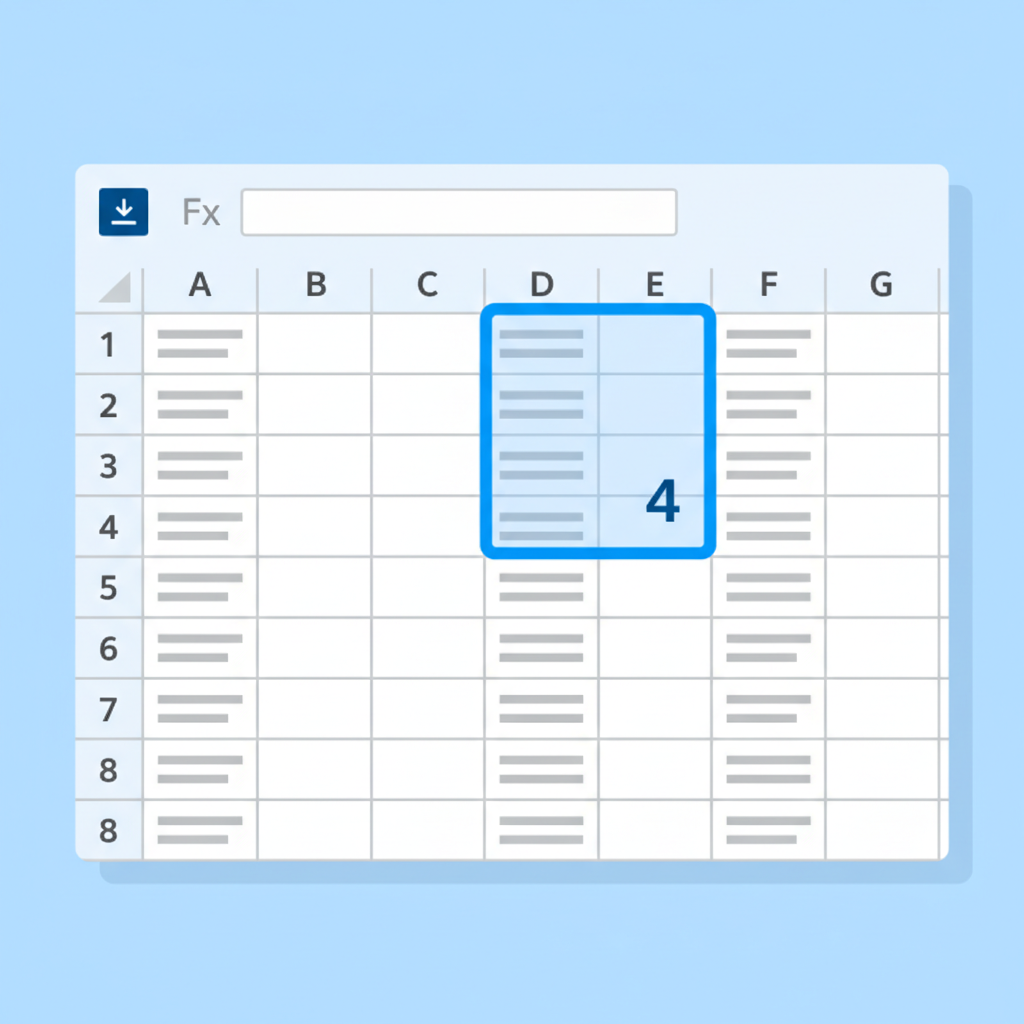
To help visualize these components, imagine this:
 ⚠️ This picture may have spelling mistakes. Trust the words in the lesson.
3. Cell Address / Cell Reference
Every single cell in a worksheet has a unique name, much like every house on a street has a unique address. This name is called its cell address or cell reference. It's formed by combining its column letter and its row number.
- For example, the cell in the first column and first row is called A1.
- The cell in the third column and fifth row is called C5.
Think of a cell address like coordinates on a treasure map (e.g., 'Go to Sector B, Row 7') or a street address (e.g., '123 Main Street'). It tells you exactly where to find or put information.
4. Active Cell
When you click on a cell, it gets a special border around it, indicating that it's currently selected. This is the active cell. Any data you type will go into this cell.
The active cell is like the lighted square on a board game, showing whose turn it is, or the empty space on a form where your pen is poised to write.
5. Range
Sometimes you don't just want to select one cell; you want to select a group of cells. A group of two or more selected cells is called a range. Ranges are identified by the cell address of the top-left cell, followed by a colon (:), and then the cell address of the bottom-right cell.
- For example, A1:A5 refers to cells A1, A2, A3, A4, and A5.
- B2:D5 refers to all cells from column B to D, and row 2 to 5 (B2, C2, D2, B3, C3, D3, etc.).
A range is like selecting a whole block of houses on a map, or a section of books on several shelves in a library.
Types of Data You Can Enter
Spreadsheet cells are versatile! They can hold different kinds of information:
- Numbers: For quantities, prices, scores, dates (which are often treated as numbers internally), etc. These are what you'll use for calculations.
- Text: For names, labels, descriptions, headings, notes, etc.
- Formulas: This is where the real power of spreadsheets comes in. Formulas are instructions that tell the spreadsheet to perform a calculation or a specific action. Every formula MUST begin with an equals sign (=).
Formulas are like magic spells or recipes. You tell the spreadsheet what ingredients (numbers or other cells) to use and what steps to follow (add, subtract, multiply), and it instantly gives you the result!
Basic Operations and Why Spreadsheets Are So Useful
With these basic concepts, you can start doing amazing things:
- Data Entry: Simply click on a cell and start typing.
- Organization: Keep lists, schedules, inventories, and contact information neatly arranged.
- Calculations: Instead of using a calculator for every sum, you can write a formula once, and the spreadsheet will update results automatically if the numbers change. For example,
=A1+B1will add the values in cell A1 and B1. - Tracking: Monitor progress on projects, track expenses, or follow sports statistics over time.
- Analysis: For more advanced users, spreadsheets help identify trends, make comparisons, and summarize large datasets.
In summary, spreadsheets are incredibly powerful digital tools that help you organize information, perform calculations effortlessly, and gain insights from your data. They are an essential skill in today's digital world, no matter what path you choose in the future.
Keep learning, free
Create a free Syllabax account to unlock practice questions and games for this topic.
Visual Learning Enhanced! 🚀
To help you master this topic, we use Advanced Syllabax AI to generate detailed diagrams and visual models.
Note on Visuals: The AI sometimes makes spelling errors in image labels. Please refer to the lesson text for the correct terminology.