Input Devices: Mouse & Keyboard
Watch this topic in 60 seconds
Free preview · Lesson 1
Understanding Input Devices: Mouse & Keyboard
Exploring the World of Input Devices: Your Computer's Hands!
Imagine you want to tell a story or draw a picture. You use your hands, your voice, or even your eyes to express yourself, right? Well, computers are a bit like that too! They need ways to 'hear' what you want them to do, 'see' your commands, and 'feel' your instructions. These special tools that help you communicate with a computer are called input devices.
Think of the computer's 'brain' as a super-smart friend. Input devices are like the ways you talk to that friend – your voice, your gestures, your written notes. Without them, your friend (the computer) wouldn't know what you want! Today, we're going to dive into two of the most common and important input devices: the mouse and the keyboard.
The Mighty Mouse: Your On-Screen Pointing Finger
Have you ever watched someone draw or point at something on a piece of paper? The mouse is like your computer's pointing finger! It's a small, handheld device that lets you move a tiny arrow or symbol, called a cursor (or pointer), around on your computer screen. Wherever you move the mouse on your desk, the cursor moves in the same direction on your screen.
What does the Mouse do?
- Move the Cursor: This is its main job! It helps you navigate around your screen, like a tour guide showing you different places on a map.
- Click and Select: Once your cursor is over something you want to interact with (like an icon, a button, or a word), you 'click' by pressing one of the mouse buttons. This is like tapping on something to choose it. A single click usually selects an item, while a double-click often opens it.
- Right-Click: The right button on the mouse usually brings up a special menu with more options, like telling your computer to 'copy' or 'paste' something. It's like asking your computer, "Hey, what else can I do with this?"
- Scroll: Many mice have a little wheel in the middle called a scroll wheel. You can roll this wheel up and down to move through long documents or web pages without having to click and drag. It's super handy, like quickly flipping through the pages of a book!
- Drag and Drop: This is when you click on an item, hold the button down, move the mouse to a new location, and then let go of the button. It's like picking up a toy and moving it to a different spot.
How does a Mouse Work? (The Simple Version)
Most modern mice are called 'optical' or 'laser' mice. They have a tiny light (usually red) underneath that 'sees' the surface you're moving it on. It detects tiny changes in the surface and tells the computer how much and in what direction you've moved the mouse. It's like a tiny camera constantly taking pictures of your desk to figure out where it's going!
Mice can be wired (connected to the computer with a cable, like a phone plugged into a charger) or wireless (they communicate with the computer using radio waves, like a remote control for your TV, needing batteries).
The Powerful Keyboard: Your Computer's Typewriter
If the mouse is your computer's pointer, then the keyboard is its main way to 'talk back' by typing! It's a flat board covered with buttons, called keys, each with a letter, number, symbol, or special function. When you press a key, it sends a signal to the computer, telling it to display that character or perform a specific action.
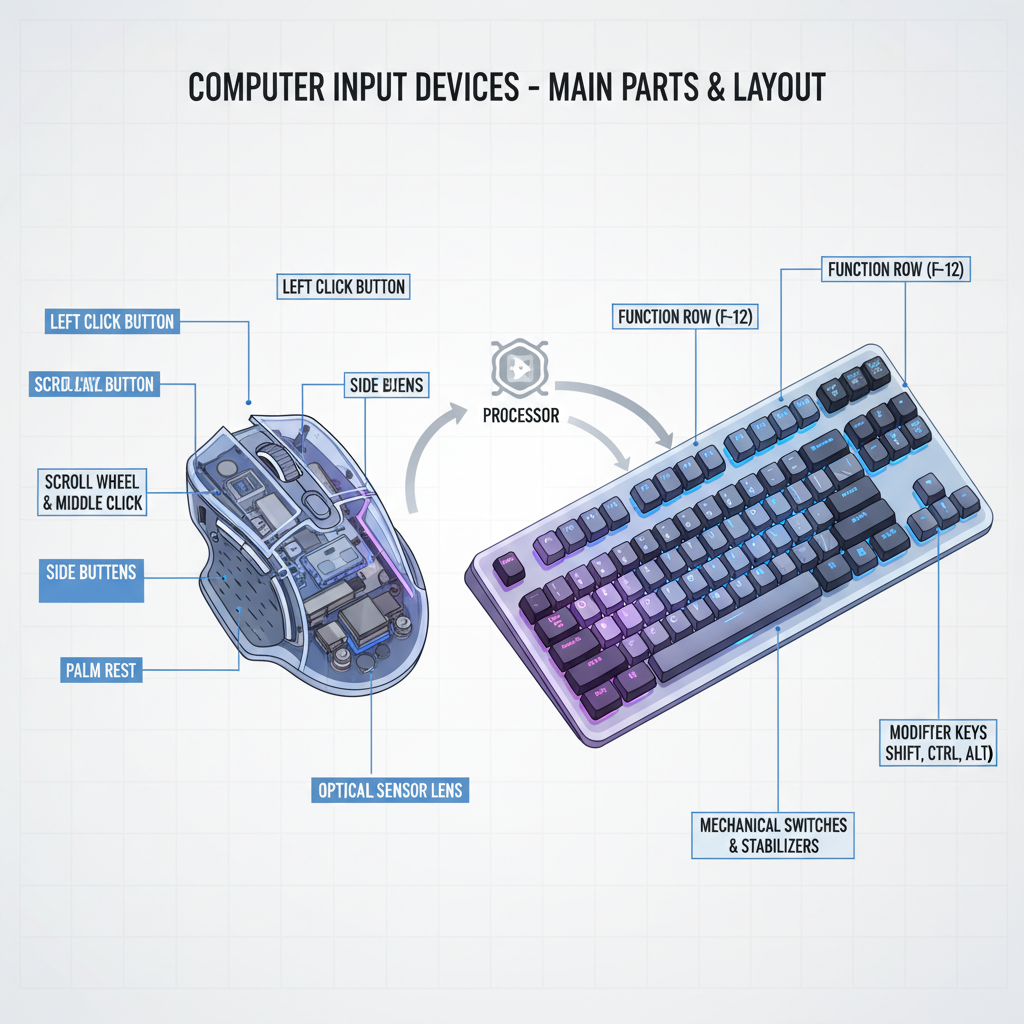 ⚠️ This picture may have spelling mistakes. Trust the words in the lesson.
What's on a Keyboard?
Keyboards might look complicated at first, but they have different sections, each with a job:
- Alphanumeric Keys: These are the main keys in the center, just like on a typewriter. They include all the letters of the alphabet (A-Z) and numbers (0-9). This is where you do most of your typing for essays, messages, and reports.
- Number Pad (Numeric Keypad): On the right side of many keyboards, there's a smaller section with numbers arranged like a calculator. It's super useful for entering lots of numbers quickly, like a cashier at a grocery store!
- Function Keys: Lined up along the top (F1, F2, F3, etc., up to F12), these keys perform special tasks depending on what program you're using. They're like shortcut buttons for specific actions.
- Arrow Keys (Navigation Keys): These four keys (up, down, left, right) help you move the cursor around a document or web page without using the mouse. They're like little directional buttons.
- Special Keys: These are super important for making your typing easier and giving commands:
- Spacebar: The long bar at the bottom, used to create spaces between words.
- Enter/Return Key: Used to start a new line of text or confirm a command.
- Shift Key: Used with another key to type capital letters or the symbols at the top of number keys.
- Control (Ctrl) / Command (Cmd) / Alternate (Alt) Keys: These are used in combination with other keys to create shortcuts, like 'Ctrl + C' to copy. They're like holding down a special power button to make other keys do new things!
- Backspace / Delete Keys: Used to erase mistakes. Backspace deletes characters to the left of the cursor, while Delete usually removes characters to the right.
Why are Mouse and Keyboard Important Together?
While each device has its own superpowers, they work best as a team! Imagine trying to write a story (keyboard) and then trying to draw a picture for it (mouse) using only one hand. It would be difficult, right? You use the keyboard to type your ideas and commands, and the mouse to point, select, and navigate through your work. They are the dynamic duo that allows you to fully control and interact with your computer, making it a powerful tool for learning, creating, and playing.
Taking Care of Your Input Devices
Just like any tool, your mouse and keyboard work best when treated with care. Avoid eating over them, as crumbs can get stuck. Use them gently – no need to smash the keys or slam the mouse! A quick wipe with a slightly damp cloth can keep them clean and happy, ready for all your amazing computer adventures.
So, the next time you sit down at a computer, remember the mouse and keyboard are your trusty sidekicks, helping you tell the computer exactly what you want it to do!
Keep learning, free
Create a free Syllabax account to unlock practice questions and games for this topic.
Visual Learning Enhanced! 🚀
To help you master this topic, we use Advanced Syllabax AI to generate detailed diagrams and visual models.
Note on Visuals: The AI sometimes makes spelling errors in image labels. Please refer to the lesson text for the correct terminology.