Saving Your Work
Watch this topic in 60 seconds
Free preview · Lesson 1
Understanding Saving Your Work
Saving Your Amazing Work!
Imagine you're building a magnificent sandcastle on the beach. You spend a long time digging, shaping, and decorating it with shells and seaweed. It looks fantastic! But then, the tide comes in and washes it all away. Poof! All your hard work is gone. It's a bit sad, right?
Working on a computer can be a lot like building that sandcastle. You might be drawing a colorful picture in a painting program, writing a story about a brave knight, or even building a virtual world in a game. You're creating something wonderful!
What Happens If You Don't Save?
If you don't 'save' your work on the computer, it's like that sandcastle. If the computer turns off, or if the program suddenly closes (which sometimes happens!), all your beautiful drawings, your exciting stories, or your amazing game progress could disappear forever, just like the sandcastle in the waves. It would be a big bummer to lose all that time and effort!
What Does 'Saving' Mean?
Saving your work on a computer means telling the computer: "Hey, this thing I just made? I want to keep it! Please put it in a safe place so I can come back to it later."
Think of it like this:
- Saving is like taking a photograph: When you draw a picture on a piece of paper, it stays there. But on a computer, your work is usually only 'real' while you're looking at it. Saving is like taking a picture of your work and making a permanent copy.
- Saving is like putting your toys in a toy box: When you're done playing with your LEGOs, you don't just leave them scattered everywhere. You put them in a toy box so they're safe and you can find them again next time. Saving puts your digital creations into a 'toy box' on the computer.
Where Does Your Work Go When You Save It?
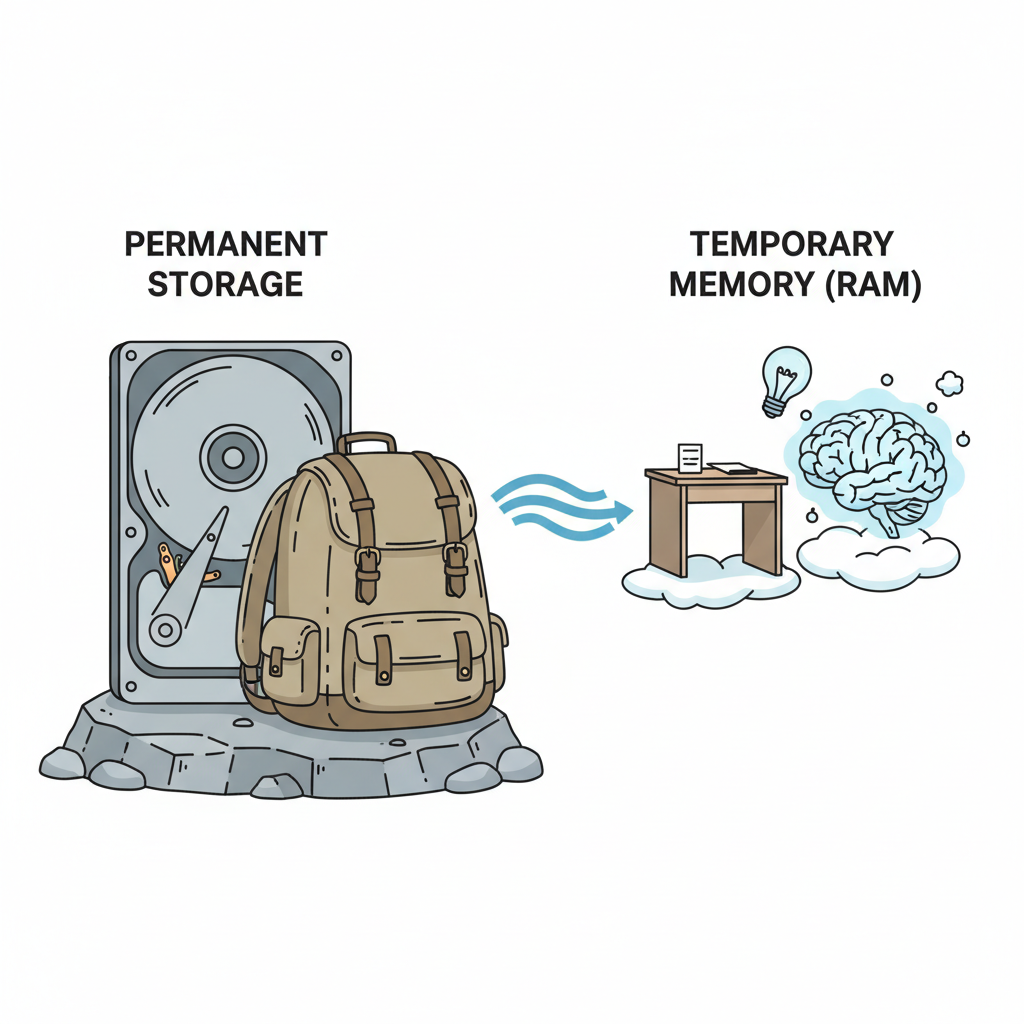
When you're working on something, like drawing a picture, the computer holds it in a temporary, super-fast spot called 'memory' (also called RAM). Think of this as your desk. You're working on your picture right there on your desk.
When you 'save' your work, the computer takes that picture from your desk (memory) and puts it into a more permanent storage place, like a hard drive or an SSD. This is like putting your finished drawing into a special art folder in your backpack or a filing cabinet. It stays there even if you turn off the computer, just like your drawing stays in your backpack until you open it again.
How Do You Save Your Work?
Saving is one of the most important things to learn on a computer! Luckily, it's almost always done the same way in most programs. Look for these clues:
- Look for the 'File' Menu: At the very top of most programs, you'll see words like 'File', 'Edit', 'View', etc. Click on 'File'.
- Look for 'Save' or 'Save As...': Once you click 'File', a list of options will drop down. You'll usually see 'Save' and 'Save As...'.
- The Save Icon: Sometimes, there's a small picture of an old-fashioned floppy disk (even though we don't use them much anymore!). This little square often means 'Save'.
- Keyboard Shortcut: For super-fast saving, you can press two keys at once: 'Ctrl' and 'S' on a Windows computer, or 'Command' and 'S' on an Apple computer. Do this often!
Here's what usually happens when you save for the very first time:
- Click on File > Save As... (or just File > Save if it's the first time).
- A box will pop up asking you two important questions:
- What do you want to name your work? This is like putting a label on your toy box. Give it a name that helps you remember what's inside, like "My Amazing Dragon Drawing" or "Story About Space Cats."
- Where do you want to put it? This is like choosing which room to put your toy box in. Do you want it in your 'Documents' folder? Or your 'Pictures' folder? Choosing a good spot helps you find it later.
- After you choose a name and a place, click the 'Save' button in that box.
'Save' vs. 'Save As...' – What's the Difference?
- 'Save' is like adding more details to the sandcastle you already started. You're updating the original. Once you've saved your work for the first time with a name and location, you just click 'Save' to update it.
- 'Save As...' is like making an exact copy of your sandcastle in a brand new spot, or giving it a new name. You use 'Save As...' when you want to:
- Give your work a brand new name.
- Put your work in a different folder.
- Make a copy of your work so you can change the copy without changing the original.
Why Should You Save OFTEN?
This is super important! Imagine you're drawing a really detailed picture. You've worked on it for an hour, but you haven't saved it yet. Suddenly, the computer loses power, or the program crashes! Uh oh. All that hour of work is gone.
But if you saved every 5 or 10 minutes, you would only lose a small part of your work, not the whole thing. Saving often is like taking small breaks to put your LEGO creation somewhere safe as you build it, so it doesn't fall apart and you don't have to start all over.
So, get into the habit of saving your work often, every few minutes, especially when you've done something new or important!
In Summary
Saving your work on a computer is like giving it a permanent home. It protects all your hard work from disappearing if something unexpected happens. Remember to always look for the 'File' menu, click 'Save' or 'Save As...', give your work a good name, and save often!
Keep learning, free
Create a free Syllabax account to unlock practice questions and games for this topic.
Visual Learning Enhanced! 🚀
To help you master this topic, we use Advanced Syllabax AI to generate detailed diagrams and visual models.
Note on Visuals: The AI sometimes makes spelling errors in image labels. Please refer to the lesson text for the correct terminology.