Learning Journey
Watch this topic in 60 seconds
Free preview · Lesson 1
Understanding Introduction to Word Processors
Introduction to Word Processors: Your Digital Writing Assistant!
Hello, young writers and creators! Have you ever wanted to write a super cool story, a letter to a friend, or maybe even help write a shopping list for your family? Usually, you'd grab a pencil and paper, right? Well, today, we're going to learn about something even more amazing and helpful: a Word Processor!
What is a Word Processor? (Your Magic Typewriter!)
Imagine you have a special computer program that is like a magic paper and a magic pencil all in one! That's exactly what a word processor is. It's a special tool on a computer or tablet that helps you write, change (we call that 'edit'), and print words. Think of it as your very own digital notebook where your words can come alive on the screen!
Why Do We Use Word Processors? (Super Powers for Your Words!)
Word processors have many 'super powers' that make writing much easier and more fun than using just paper and pencil:
- Super Neat Handwriting! Ever wish your handwriting was always perfectly neat? With a word processor, every letter you type looks perfectly clear and printed. It's like having the neatest handwriting in the world, every single time!
- Easy-Peasy Mistakes Fixer! Made a mistake? Spelled a word wrong? No problem! Instead of grabbing a smudgy eraser, a word processor has a super-fast, super-clean magic eraser. You can delete words, letters, or even whole sentences instantly, without leaving any messy marks behind!
- Dress Up Your Words! Want your words to look fancy? Big? Small? Red? Blue? A word processor is like a dress-up box for your words! You can change how they look in so many creative ways.
- Sharing is Caring! Once you've written your amazing story or letter, it's super easy to share it with friends, family, or your teacher. You can send it through email like a digital letter, or print out a paper copy.
Looking at a Word Processor: What Do You See?
When you open a word processor, you'll see a few important things:
1. The Blank Page: This is the biggest part of the screen, usually white. This is your piece of paper! It's where all your words will appear as you type.
2. The Blinking Cursor: Look closely at the blank page. Do you see a small, blinking line, like 'I'? That's your magic pencil tip! It shows you exactly where the next letter you type will appear. It's like your pencil is waiting on the paper, ready to write right there.
3. The Toolbar or Ribbon: At the top of the screen, you'll see many small buttons with pictures and words. This is your toolbox! Each button is a different tool that helps you do something special with your words – like changing their color, making them bigger, or making them bold. We'll learn more about these tools soon!
4. Menus: Sometimes, at the very top, you'll see words like "File," "Edit," or "View." Think of these as secret doors to even more tools and options! You click on them to open a list of choices.
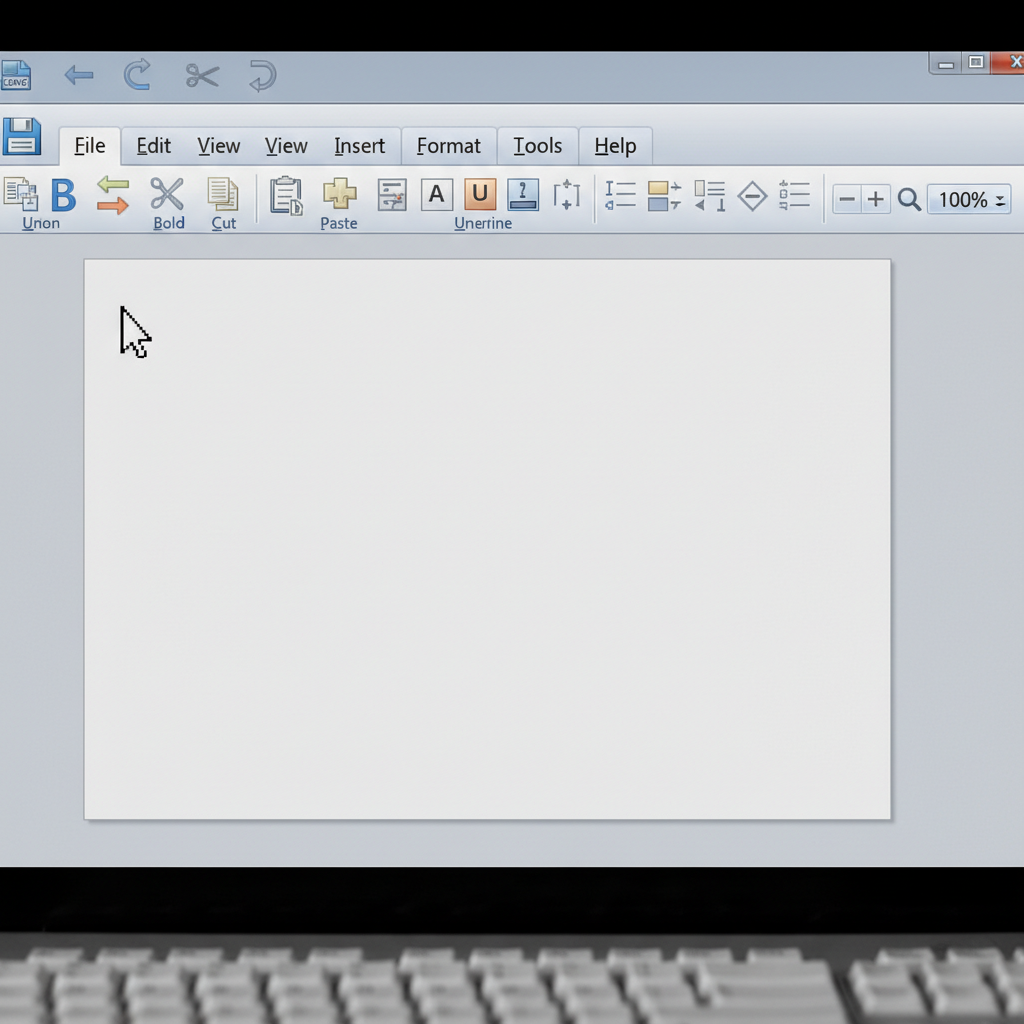 ⚠️ This picture may have spelling mistakes. Trust the words in the lesson.
What Can You Do with a Word Processor? (Basic Actions)
Let's talk about the basic things you'll do most often:
- Typing: This is super easy! Just press the letters on your keyboard, and magically, they appear on your blank page, right where the cursor is blinking. It's just like writing, but with your fingers on keys!
- Deleting: Oops, made a typo or want to remove a word? Just press the "Backspace" key (usually above the "Enter" key) or the "Delete" key. It's your quick, clean magic eraser!
- Saving Your Work: This is probably the MOST important step! When you're done writing, or even if you're taking a break, you need to save your work. Think of it like putting your valuable drawing into a safe treasure chest so it doesn't get lost forever. If you don't save, it's like leaving your drawing outside in the wind – it might blow away!
- Opening Your Work: After you save your work, you can always open it again later to keep writing, make changes, or just read what you wrote. It's like opening your treasure chest to get your drawing back out.
- Printing: Want a paper copy of your story or letter? A word processor can send your digital words to a printer, which is a machine that puts your words on real paper. It's like making a copy of your digital notebook page!
Making Your Words Look Special (Dress-Up Box for Words!)
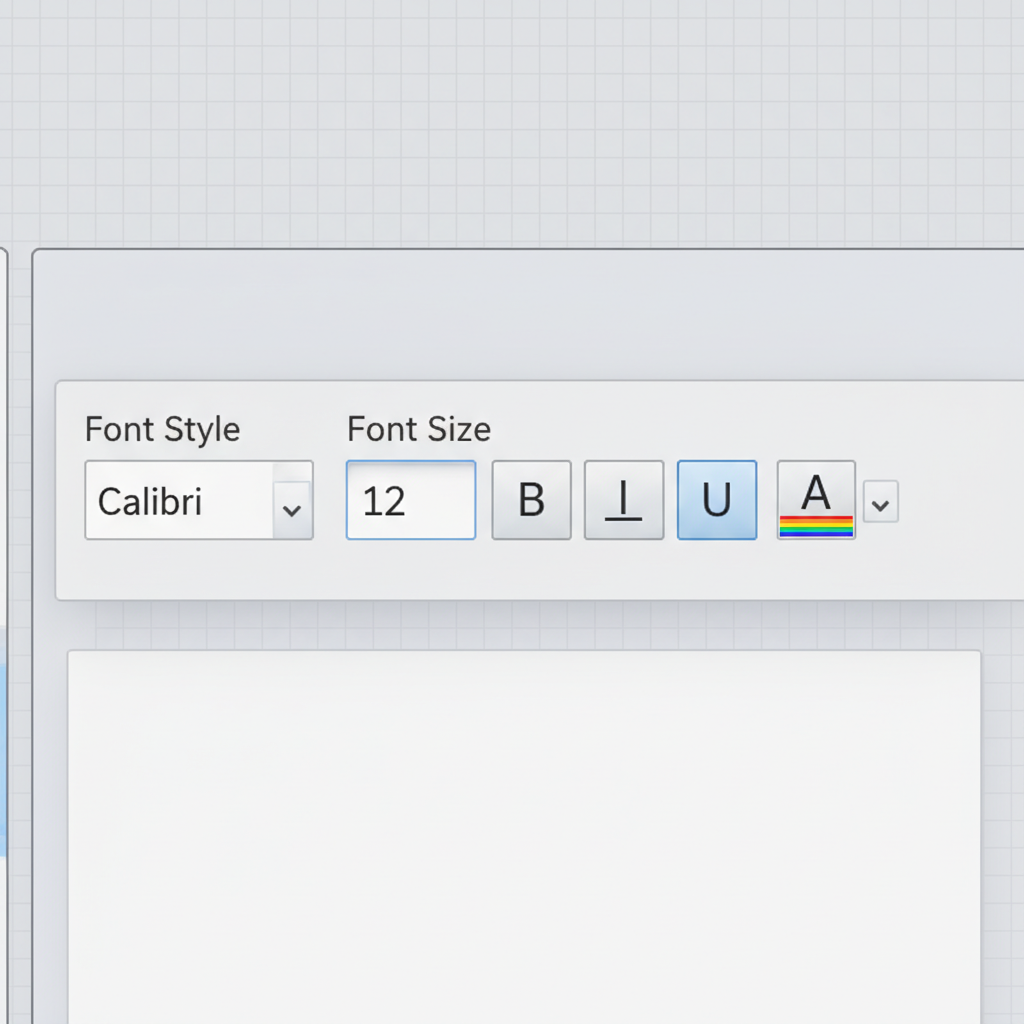
Here's where the fun really begins! Your toolbar has lots of buttons to change how your words look:
- Font: This is like choosing different handwriting styles for your words! Do you want your words to look curly, blocky, or simple? There are so many fonts to choose from!
- Size: You can make your words super tiny like little ants, or giant like big friendly monsters! Just pick a number, and your words will change size.
- Bold, Italic, Underline: These are three super cool ways to make your words stand out!
- Bold: Makes your words look thicker and darker, like they are shouting!
- Italic: Makes your words lean a little to the side, like they are whispering or tiptoeing.
- Underline: Puts a line under your words, like you're saying, "Hey, pay attention to this!"
- Color: Want your words to be rainbow-colored? You can pick any color for your text!
Keep Practicing!
Learning to use a word processor is like learning to ride a bike – the more you practice, the better you get! Soon, you'll be a word processing wizard, creating amazing stories, reports, and letters with ease.
Keep learning, free
Create a free Syllabax account to unlock practice questions and games for this topic.
Visual Learning Enhanced! 🚀
To help you master this topic, we use Advanced Syllabax AI to generate detailed diagrams and visual models.
Note on Visuals: The AI sometimes makes spelling errors in image labels. Please refer to the lesson text for the correct terminology.