Creating Presentations
Watch this topic in 60 seconds
Free preview · Lesson 1
Understanding Creating Presentations
Creating Awesome Presentations: Your Guide to Sharing Ideas!
Hey 7th Graders! Have you ever wanted to share an idea, tell a story, or teach something cool to a group of people, but felt like just talking wasn't enough? That's where presentations come in! Think of a presentation like a superhero sidekick for your words. It helps your message fly higher and stick better in people's minds.
What Exactly Is a Presentation?
Imagine you're building a super cool LEGO castle. You wouldn't just tell someone about it; you'd show them the turrets, the drawbridge, and the secret passages, right? A presentation is kind of like that. It's a way to show and tell your ideas using a series of digital 'pages' called slides. These slides use a mix of text, pictures, and sometimes even videos to make your message clear and exciting.
Why Do We Create Presentations? (The Superpowers of Presenting!)
- To Inform: Like a news reporter sharing important facts.
- To Persuade: Like a lawyer trying to convince a jury (or you trying to convince your parents to get a pet!).
- To Teach: Like a teacher explaining a new concept.
- To Entertain: Like a comedian telling jokes, but with slides!
The Building Blocks of a Great Presentation: What Goes on Your Slides?
Think of each slide as a small canvas. You don't want to splatter paint everywhere; you want to create a clear, impactful picture.
1. Text: The Words You Choose
Imagine you're driving on a highway. You see a road sign telling you the speed limit. It's usually big, clear, and has only a few words. It doesn't have a whole paragraph explaining *why* that's the speed limit, does it? Your presentation slides should be like those road signs, not like a full novel!
- Keep it short and sweet: Use keywords and phrases, not long sentences. If you put too many words, people will be reading your slide instead of listening to YOU!
- Big and Clear Fonts: Make sure your text is large enough to read easily from a distance. Think of it like shouting your message (but with text!).
- Good Contrast: If your background is dark, use light text. If your background is light, use dark text. This is like turning on a light in a dark room so everyone can see!
2. Images and Graphics: Show, Don't Just Tell!
A picture is worth a thousand words, right? This is super true in presentations! If you're talking about ocean animals, wouldn't it be better to show a picture of a dolphin jumping, rather than just saying "dolphins jump"?
- Visual Power: Images, charts, graphs, and drawings help people understand complex ideas quickly. They're like the illustrations in a storybook that bring the words to life!
- Relevance is Key: Make sure your images truly relate to what you're talking about. Don't just throw in a random picture of a cat unless you're talking about cats!
- High Quality: Use clear, crisp images. Blurry pictures are like trying to read a smudged message – difficult and annoying!
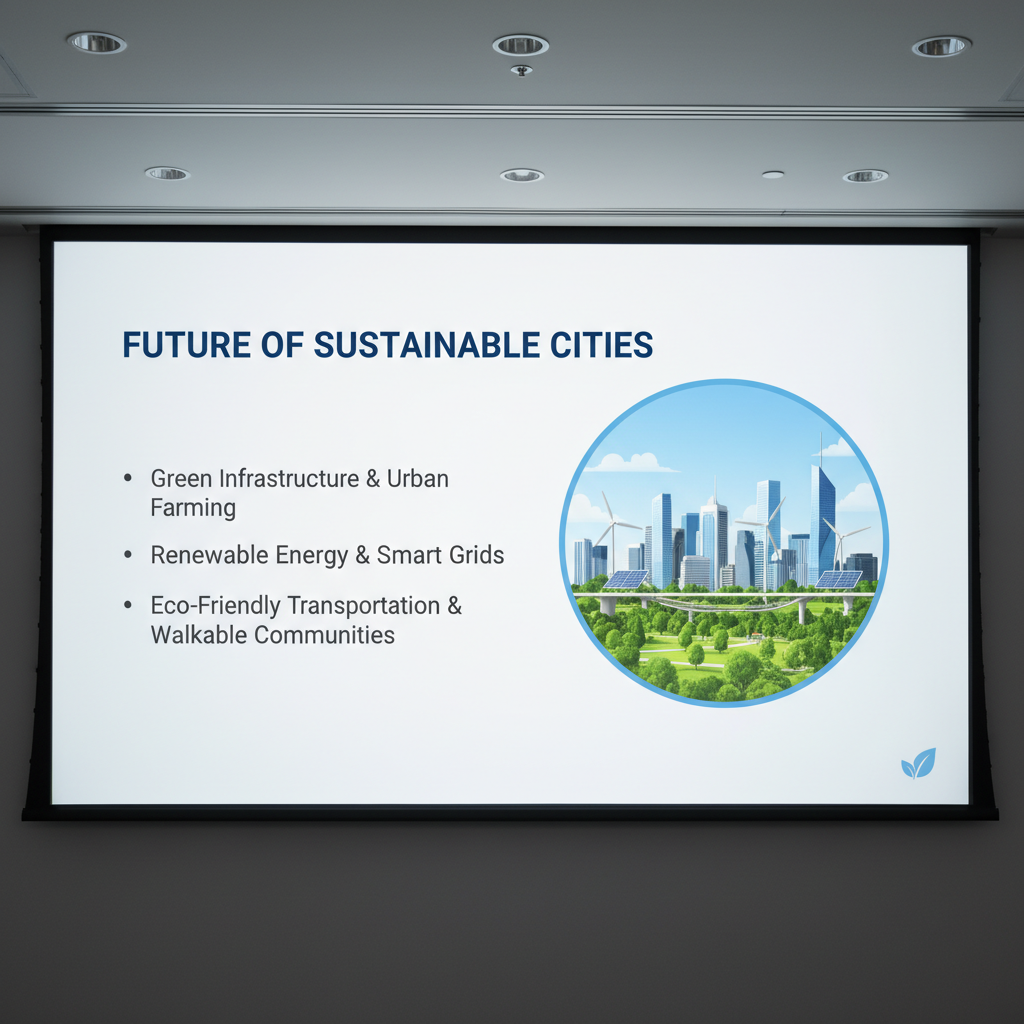
3. Bullet Points: Organizing Your Ideas
Think of bullet points like a shopping list. You don't write long descriptions for each item; you just list what you need. "Milk, bread, eggs." Easy to read, easy to remember!
- List Key Ideas: Bullet points are perfect for breaking down information into easy-to-digest chunks.
- One Idea Per Bullet: Try to keep each bullet point focused on a single piece of information.
Planning Your Presentation: The Secret Sauce!
Before you even open a presentation program (like Google Slides or PowerPoint), you need a plan! Building a presentation without a plan is like trying to bake a cake without a recipe – it might work, but it's probably going to be a disaster!
1. Know Your Audience: Who Are You Talking To?
Would you tell a story to a little kid the same way you'd tell it to your grandparents? Probably not! You'd use simpler words for the kid and more details for your grandparents. Your audience is the group of people who will be watching your presentation.
- Tailor Your Message: Think about what your audience already knows, what they need to learn, and what will interest them. This helps you choose the right words and examples.
2. What's Your Main Message? (The "So What?")
Every good presentation has one main point, one big idea it wants to get across. What's the most important thing you want your audience to remember when you're done? This is like the moral of a story.
3. Outline Your Ideas: Structure is Your Friend!
Before you start adding pictures and fancy fonts, create a simple outline. This is like drawing a blueprint for a house before you start building walls.
- Introduction: Hook your audience! Tell them what you're going to talk about.
- Main Points: Break your big idea into smaller, manageable chunks. Each chunk can be a few slides.
- Conclusion: Summarize your main points and leave your audience with something to think about (your "So What?").
Basic Design Tips for Amazing Slides
- Don't Overload: Less is more! A slide with too much text or too many pictures is like a cluttered room – hard to find what you're looking for. Aim for one main idea per slide.
- Be Consistent: Try to stick to 1-2 types of fonts and a consistent color scheme. This makes your presentation look professional and polished, like wearing a matching outfit!
- Use Space Wisely: Don't cram everything into tiny corners. Give your text and images some 'breathing room' so they don't feel squished.
Putting It All Together: Practice, Practice, Practice!
Once your slides are ready, it's time to practice what you're going to say! Even the best slides won't shine if you haven't rehearsed. Practicing helps you feel more confident and makes your presentation flow smoothly, like a well-rehearsed play!
So, there you have it! Creating presentations is a fantastic skill that helps you share your ideas clearly and powerfully. Now go forth and present like a pro!
Keep learning, free
Create a free Syllabax account to unlock practice questions and games for this topic.
Visual Learning Enhanced! 🚀
To help you master this topic, we use Advanced Syllabax AI to generate detailed diagrams and visual models.
Note on Visuals: The AI sometimes makes spelling errors in image labels. Please refer to the lesson text for the correct terminology.