Learning Journey
Free preview · Lesson 1
Understanding Saving Your Digital Work
Saving Your Digital Work: Don't Let Your Masterpiece Disappear!
Hello, amazing artists and storytellers! Have you ever made a beautiful drawing or written a super cool story on a computer or tablet? That's your digital work! Just like your drawings on paper, these digital creations are very special. But there's a secret to keeping them safe so they don't vanish into thin air! It's called saving.
Imagine This... A Sandcastle Story!
Imagine you're at the beach, building the most magnificent sandcastle ever! You spend hours making towers, moats, and tiny windows. If you just leave it there when you go home, what happens? The ocean waves might come and wash it all away, or other people might accidentally step on it. All your hard work would be gone!
Your digital work is a bit like that sandcastle. When you're drawing or typing on a computer, it's like you're building your sandcastle on a temporary spot. The computer is showing it to you right now, but it's not truly safe until you tell the computer, "Hey, please keep this forever!"
Why Do We Need to Save?
Saving is like taking a super special photograph of your sandcastle and putting it in a safe album at home. Or, it's like putting your favorite toy away in its toy box. If you don't put your toy away, it might get lost, right? The same goes for your digital work!
- To Keep It Safe: If the computer turns off by accident (like the power going out!) or if you close the program without saving, poof! Your work can disappear forever. Saving makes it stay!
- To Work On It Later: Maybe you want to add more colors to your drawing tomorrow, or write another chapter of your story next week. If you save, you can open it right back up and keep working!
- To Share It: Once saved, you can show your amazing work to your family, friends, or your teacher!
Think of the computer's memory (where your work is right now) like a whiteboard. You can write on it quickly, but if you don't take a picture or copy it onto paper, it will be erased the moment you wipe the board clean. Saving is like making that permanent copy!
The Magic Button: The 'Save' Icon!
Most computer programs have a special button or menu choice that helps you save. It often looks like a small, flat box (that's an old floppy disk!) or sometimes a cloud or a simple down arrow. This is your 'Save' button!
When you click this 'Save' button, you are telling the computer, "Please take my sandcastle from the temporary beach and put it in a super safe, special box called the hard drive or storage!" This hard drive is like a huge, magic library or a giant toy box inside your computer that remembers everything.
'Save' vs. 'Save As'... What's the Difference?
These two can be a little tricky, but let's make it simple:
- Save: Imagine you have a drawing on paper, and you add more stickers to it. You're just changing the *same* drawing. When you click 'Save' (after saving it the first time), you're telling the computer, "Update this same file with my new changes." It's like adding more fun to your existing work!
- Save As: Now imagine you've made a drawing, and you want to make a *copy* of it to give to a friend, but you also want to keep your original. Or maybe you want to start a new drawing that's very similar but has a different color scheme. When you click 'Save As', you're telling the computer, "Make a *brand new copy* of this work, and let me give it a different name or put it in a different place." It's like making a duplicate drawing or starting a new version! You always use 'Save As' the *very first time* you save something new.
Giving Your Work a Good Name and a Home!
When you use 'Save As' for the first time, or just 'Save' for a new document, the computer will ask you two important things:
- What's its Name? This is like putting a label on your toy box. If you just call everything 'My Drawing', it will be super hard to find your picture of a rainbow unicorn when you want it! A good name tells you exactly what's inside, like 'Rainbow Unicorn Drawing' or 'My Space Story'.
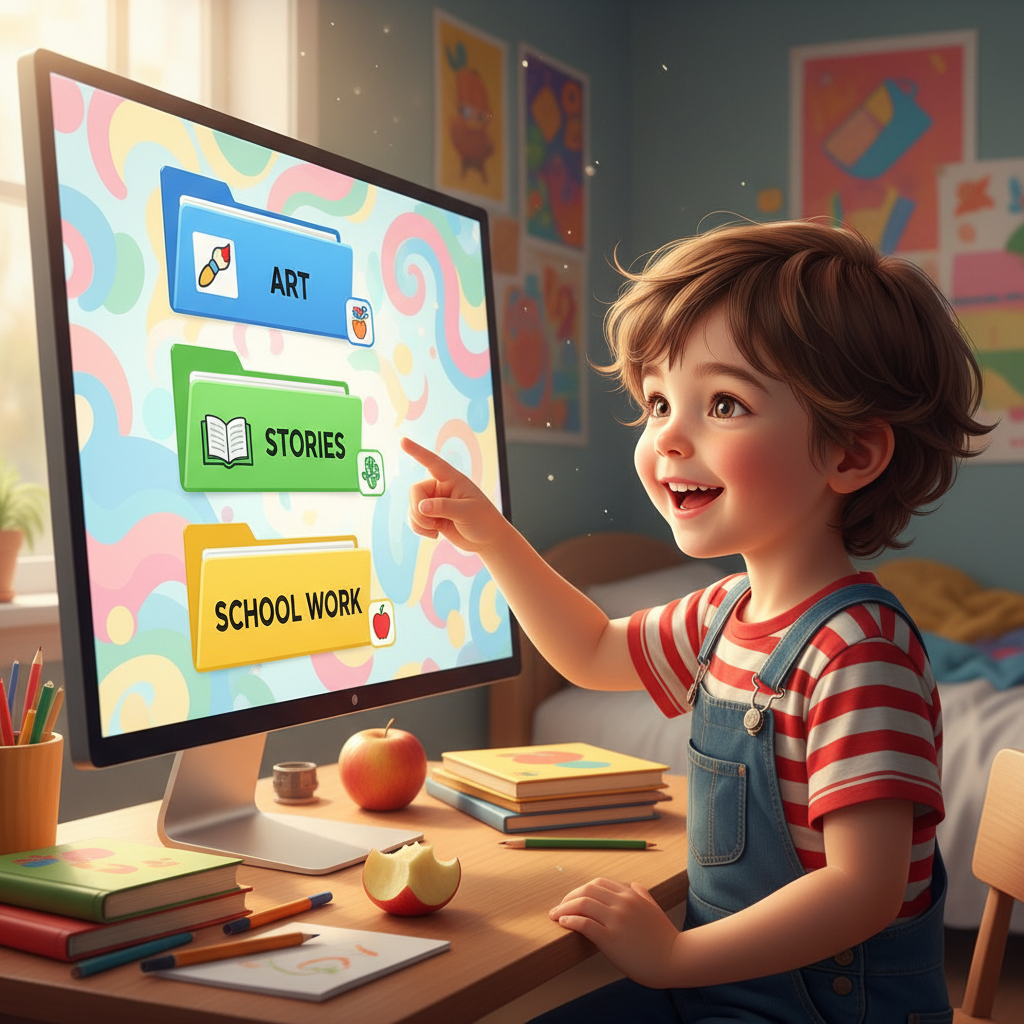
- Where Should It Live? This is like deciding which shelf or which room your toy box should go in. Computers have things called folders. A folder is like a special box or a drawer where you can keep similar things together. You might have a 'My Art' folder, a 'My Stories' folder, or a 'School Work' folder. This helps you stay super organized, just like keeping all your LEGOs in one box and all your crayons in another!
Let's Practice Our Saving Superpower!
Next time you're making something amazing on the computer:
- Remember your sandcastle! Don't let your work wash away.
- Look for the 'Save' button or menu.
- If it's new, use 'Save As'. Give it a clear name and put it in the right folder.
- Keep saving often as you work! It's like taking a new photo of your sandcastle every time you add a new tower!
By saving your digital work, you become a digital superhero, protecting all your wonderful creations! Great job!
Keep learning, free
Create a free Syllabax account to unlock practice questions and games for this topic.
Visual Learning Enhanced! 🚀
To help you master this topic, we use Advanced Syllabax AI to generate detailed diagrams and visual models.
Note on Visuals: The AI sometimes makes spelling errors in image labels. Please refer to the lesson text for the correct terminology.