Storage Devices: Hard Drives & SSDs
Watch this topic in 60 seconds
Free preview · Lesson 1
Understanding Storage Devices: Hard Drives & SSDs
Welcome to the World of Computer Storage: Hard Drives & SSDs!
Have you ever tried to remember something important, like what you ate for breakfast or the name of your best friend? Our brains are amazing storage devices! They hold onto memories, facts, and experiences. Just like our brains, computers also need a place to remember things – all the games, photos, videos, documents, and programs you use every day. This 'memory bank' for your computer is called a storage device.
Imagine your computer as a super-smart student. When it's actively working on a problem (like playing a game or running a program), it uses its 'short-term' memory, called RAM (Random Access Memory). But when the student goes home and wants to save their homework or project for later, they need a 'long-term' memory – a place where the information stays even when the computer is turned off. That's where storage devices come in!
The Two Big Players: Hard Disk Drives (HDDs) and Solid State Drives (SSDs)
Today, we're going to meet the two main types of long-term storage devices you'll find in most computers: the classic Hard Disk Drive (HDD) and the speedy new kid on the block, the Solid State Drive (SSD). Think of them like two different kinds of libraries:
- HDD Library: A huge, old-fashioned library with many floors, filled with physical books. To find a book, a librarian has to walk to the right shelf, pull out the book, and bring it to you. It takes a little time, but they can store a mountain of books!
- SSD Library: A futuristic, digital library where all books are stored as digital files on super-fast computer servers. When you request a book, it's instantly pulled up on a screen – no walking, no searching for physical copies. It's incredibly fast, but building and maintaining this digital library can be more expensive.
1. The Classic Workhorse: Hard Disk Drives (HDDs)
The Hard Disk Drive has been around for a long time and is still very common, especially for computers that need to store a lot of data without breaking the bank. Let's peek inside to see how it works:
How HDDs Work: A Record Player for Your Data
Imagine an old record player. It has a spinning disk (the record) and an arm with a needle that reads the music. An HDD works in a very similar way!
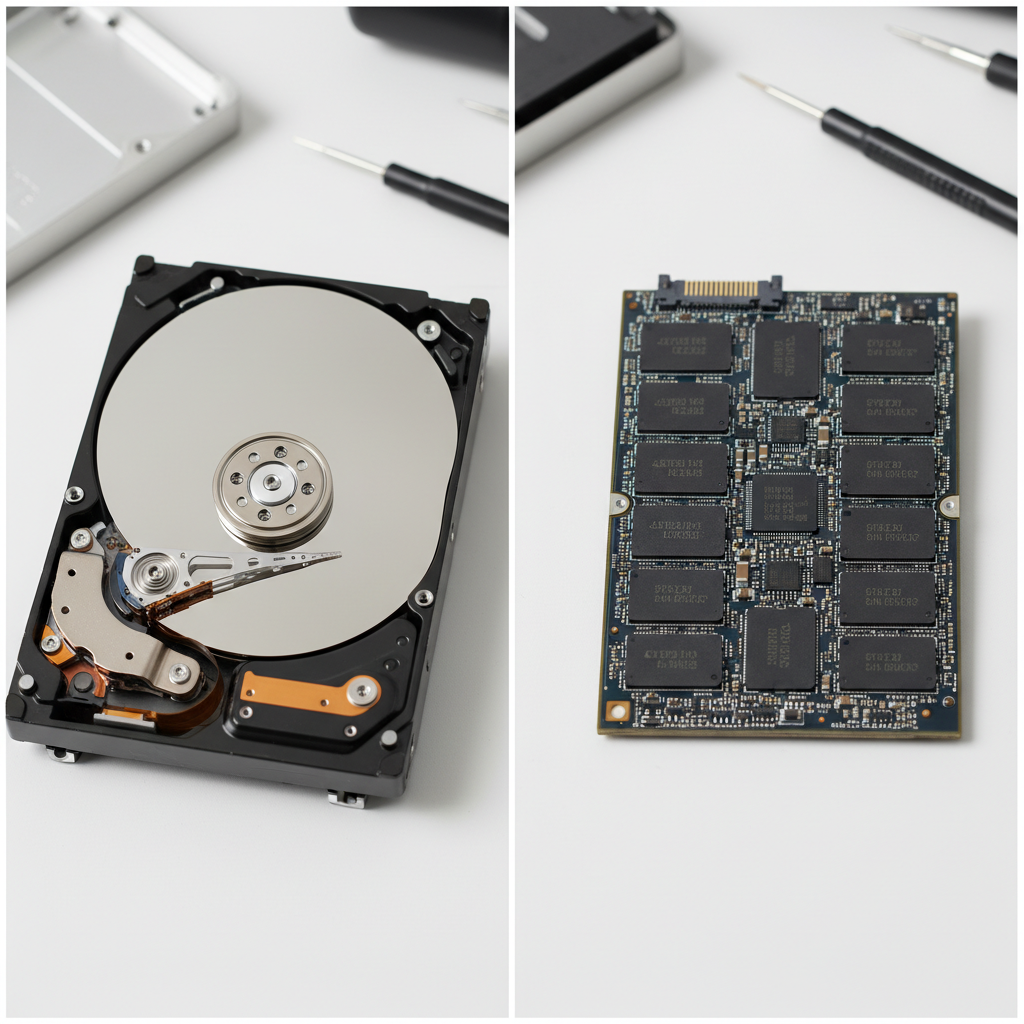
- Platters: Inside an HDD, there are one or more shiny, circular disks called platters. These are made of metal or glass and are coated with a special magnetic material. Think of them as incredibly smooth, super-fast spinning CDs!
- Spindle Motor: A motor spins these platters at very high speeds, often thousands of rotations per minute (RPM). The faster they spin, the quicker data can potentially be accessed.
- Read/Write Head: Hovering just above the platters (without touching them!) is a tiny arm with a read/write head. This head is like the needle on a record player. It uses electromagnetism to 'write' (save) data by changing the magnetic spots on the platter, or 'read' (access) data by detecting those magnetic changes.
- Actuator Arm: The read/write head is attached to an actuator arm, which moves back and forth across the platter's surface, just like your arm moves to find a specific track on a record.
So, when you save a file, the read/write head moves to the correct spot on the spinning platter and magnetically writes the information. When you open that file again, the head moves back, reads the magnetic pattern, and sends the information back to your computer.
Pros of HDDs:
- Lots of Space for Less Money: HDDs offer a huge amount of storage capacity for a relatively low price. If you have tons of movies, games, or photos, an HDD can be a very cost-effective solution.
- Good for Archiving: Because they're cheap and store so much, they're great for storing files you don't access all the time, like backups or old projects.
Cons of HDDs:
- Slower: Because of all the moving parts (spinning platters, moving arm), HDDs are slower than SSDs. It takes time for the head to find the right spot on the platter.
- Fragile: Those moving parts also make HDDs delicate. If you drop a laptop with an HDD, the platters or read/write head can easily be damaged, leading to data loss.
- Noisy: You might sometimes hear a soft whirring or clicking sound from an HDD as its platters spin and the head moves.
- Uses More Power: The motors and spinning parts require more electricity to operate.
2. The Modern Marvel: Solid State Drives (SSDs)
The Solid State Drive is a newer technology that has become incredibly popular in recent years, especially in laptops, tablets, and high-performance computers. It's a completely different way of storing data!
How SSDs Work: A Giant USB Stick!
Forget spinning platters and moving arms. An SSD has absolutely no moving parts! Think of an SSD as a super-sized, super-fast version of the USB flash drive or the memory card you use in a digital camera.
- Flash Memory: SSDs store data using something called flash memory. This is a type of non-volatile memory, which means it keeps your data even when the power is turned off.
- Tiny Cells: Data is stored in tiny electrical cells as electrical charges. Imagine each cell as a tiny light switch that can be either 'on' or 'off' (representing 0s and 1s, the language of computers).
- Controller: A special chip called a controller manages where all the data is stored and retrieved, ensuring everything runs smoothly and quickly.
Because there are no physical parts that need to move to find data, an SSD can access information almost instantly by reading the electrical states of its memory cells. It's like having all the books in our 'digital library' instantly appear on your screen with a single click!
 Pros of SSDs:
- Blazing Fast: This is the biggest advantage! Computers with SSDs boot up much faster, programs open almost instantly, and files transfer in a blink.
- Durable: No moving parts means SSDs are much more resistant to drops, bumps, and vibrations. They're great for laptops and portable devices.
- Silent: With no motors or spinning platters, SSDs are completely silent during operation.
- Energy Efficient: They use less power than HDDs, which can help extend battery life in laptops.
- Compact: SSDs can be made much smaller than HDDs, allowing for thinner and lighter devices.
Cons of SSDs:
- More Expensive: Per gigabyte of storage, SSDs are generally more expensive than HDDs. While prices are coming down, you'll still pay more for the same amount of space compared to an HDD.
- Limited Write Cycles (Theoretical): Flash memory cells have a theoretical limit to how many times data can be written to and erased from them. However, for typical daily use, this limit is so high that most users will upgrade their computer long before an SSD wears out.
HDD vs. SSD: A Quick Comparison
To summarize, here's a quick side-by-side look:
FeatureHard Disk Drive (HDD)Solid State Drive (SSD)How it Stores DataMagnetically on spinning plattersElectrically in flash memory chipsMoving PartsYES (platters, read/write arm)NO (solid state)SpeedSlower (like finding a physical book)Much Faster (like instant digital access)DurabilityFragile (prone to damage from drops)Very Durable (resistant to drops/bumps)NoiseCan be noisy (whirring, clicking)SilentCost per GBLess expensiveMore expensiveBest ForLarge archives, budget systemsOperating systems, games, applications, laptops When to Choose Which?
- Choose an HDD if:
- You need a huge amount of storage (several terabytes) for things like a massive game library, video editing projects, or photo archives.
- You're on a tight budget and need the most storage space for your money.
- You have a desktop computer where speed isn't the absolute top priority.
- Choose an SSD if:
- You want your computer to start up incredibly fast and programs to load almost instantly.
- You're a gamer who wants quicker load times.
- You have a laptop or portable device and need extra durability and longer battery life.
- You value silence and don't want any mechanical noises from your computer.
Many computers today actually use a combination of both! They might have a smaller SSD for the operating system and frequently used programs (for speed) and a larger, cheaper HDD for storing all your documents, photos, and videos (for capacity). This is like having a small, super-fast digital library for your most popular books, and a huge, traditional library for everything else!
Conclusion: Your Computer's Memory Bank
Storage devices are fundamental to how computers work. Whether it's the mechanical genius of an HDD or the electrical wizardry of an SSD, both serve the crucial purpose of keeping your digital life safe and accessible. Understanding these differences helps you make smart choices about computers and gives you a better appreciation for the amazing technology inside them!
Keep learning, free
Create a free Syllabax account to unlock practice questions and games for this topic.
Visual Learning Enhanced! 🚀
To help you master this topic, we use Advanced Syllabax AI to generate detailed diagrams and visual models.
Note on Visuals: The AI sometimes makes spelling errors in image labels. Please refer to the lesson text for the correct terminology.