Our First Drawing Program
Watch this topic in 60 seconds
Free preview · Lesson 1
Understanding Our First Drawing Program
🎨 Our First Drawing Program: Let's Be Digital Artists! 🖍️
Hello, young artists! Have you ever drawn a picture with crayons, markers, or paint? It's so much fun to make beautiful things, isn't it? Well, today, we're going to learn about a super cool way to draw using a computer or a tablet! It's like having an endless box of crayons and a magic piece of paper that never runs out!
What is a Drawing Program? 🤔
Imagine you have a special digital art box inside your computer. This art box is called a drawing program. It's a special helper that lets you create pictures right on the screen! Instead of holding a real pencil, you'll use your finger or a computer mouse to draw. It's like a magical drawing board where your imagination can come alive!
Your Drawing Paper: The Canvas! 🖼️
When you open a drawing program, you'll see a big, empty white space. This is your canvas! Think of it like a brand new, clean piece of paper ready for your amazing ideas. This is where all your lines, colors, and shapes will go. It's your blank slate, just waiting for you to fill it with your art!

Here's a child using a drawing program! See how fun it looks?
Your Digital Art Tools: So Many Choices! 🛠️
Just like your real art box has crayons, markers, and erasers, your digital drawing program has special tools too. They often look like little pictures on the side or top of your screen. Let's meet some of them!
1. The Pencil/Brush Tool ✏️
This is your main drawing tool! When you click on it, it's like picking up a real pencil or a paintbrush. You can use it to draw lines, squiggles, shapes, or anything you can imagine. Move your mouse or finger on the canvas, and a line will appear, just like magic!
2. The Eraser Tool 🧼
Oops! Made a little mistake? Don't worry! Every good artist makes mistakes, and the eraser tool is here to help. Click on the eraser, and then 'rub' it over the part you want to remove. It's just like a real eraser, making your mistakes disappear so you can try again!
3. The Color Palette 🌈
This is like your box of many, many crayons and paints! The color palette shows you lots of different colors. You can click on any color you like – red, blue, green, yellow, purple – and then your pencil or brush will draw in that new color. Isn't that neat?
4. The Fill Tool (Paint Bucket) 🪣
Imagine you've drawn a big circle and you want to fill it completely with red. Instead of coloring it in line by line, you can use the fill tool, which often looks like a paint bucket spilling paint. First, pick your color from the palette, then click the paint bucket, and then click inside your shape. Zoom! The whole area fills up with color instantly! It's like magic paint!
5. Shape Tools (Circle, Square, Line) 🔵⬜─
Sometimes, you want to draw a perfect circle or a perfectly straight line. The shape tools help you do just that! You can click on the circle tool, for example, then click and drag your mouse on the canvas, and a perfect circle will appear. It's like having stencils, but on the computer!
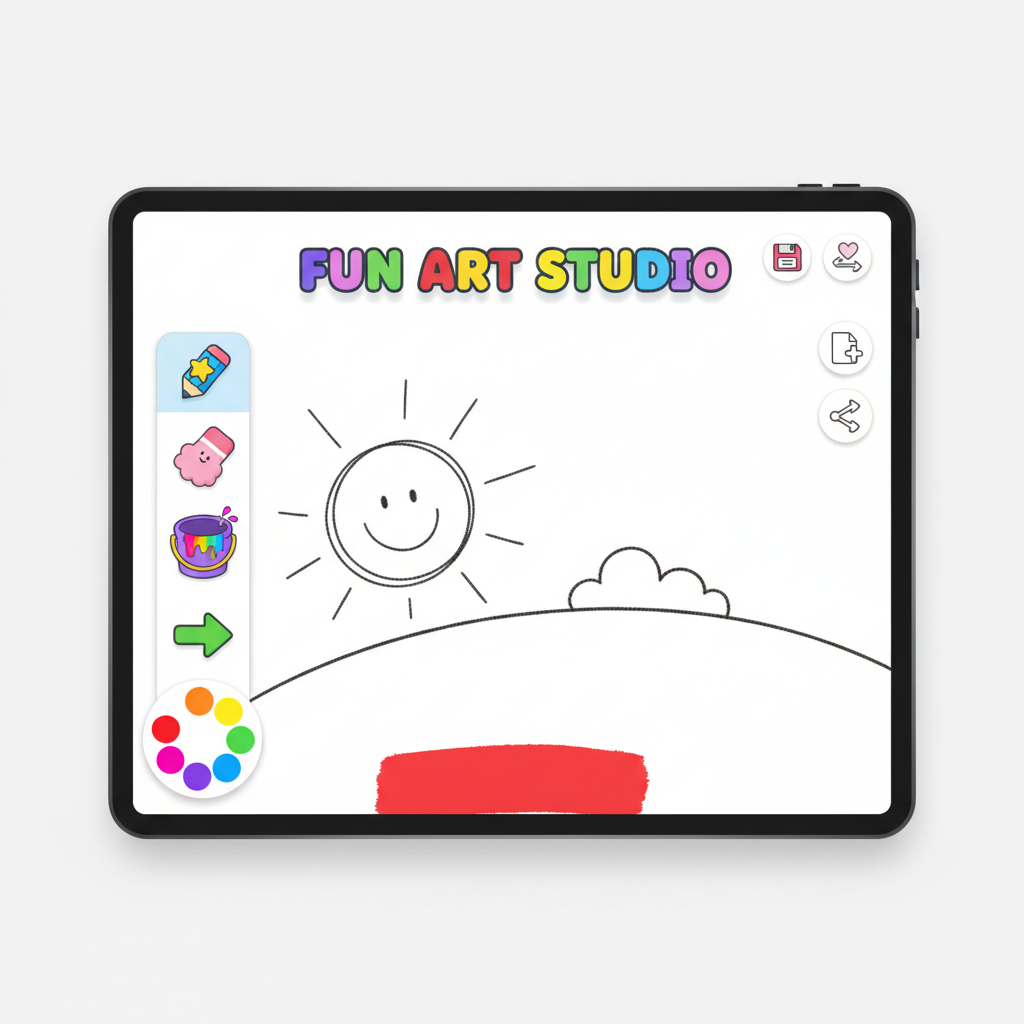
This is what a simple drawing program might look like, with all its tools!
Saving Your Masterpiece! 💾
After you've finished your amazing drawing, you'll want to keep it, right? Just like you put your paper drawings in a special folder, you need to save your digital drawing. Look for a button that says 'Save' or has a picture of a little floppy disk (it looks like a small square). Clicking this button tells the computer to remember your drawing so you can open it and see it again another time!
Time to Explore! ✨
The best way to learn about a drawing program is to play with it! Don't be afraid to click on different tools and see what they do. Try drawing your favorite animal, a house, a car, or even a magical creature! There are no rules in art, just lots of fun and imagination.
Remember, every artist starts somewhere. With a drawing program, you have all the tools you need to create amazing digital art! Have fun, be creative, and let your imagination soar!
Keep learning, free
Create a free Syllabax account to unlock practice questions and games for this topic.
Visual Learning Enhanced! 🚀
To help you master this topic, we use Advanced Syllabax AI to generate detailed diagrams and visual models.
Note on Visuals: The AI sometimes makes spelling errors in image labels. Please refer to the lesson text for the correct terminology.