Learning Journey
Watch this topic in 60 seconds
Free preview · Lesson 1
Understanding Desktop Navigation: Icons & Taskbar
Desktop Navigation: Your Digital Workspace
Imagine your computer's desktop like your very own desk at home or in your classroom. Just like you keep your books, pencils, and favorite toys on your desk, your computer's desktop is where you see all the important tools and files you need to use. It’s your main workspace!
Understanding Icons: Your Picture Labels
Look closely at your computer screen. Do you see small pictures with words underneath them? These are called icons. Think of icons like the labels on your folders in a binder, or the pictures on the buttons of a remote control. Each icon is a little picture that tells you what it is or what it does.
Analogy: If you have a toy box, you might put a sticker of a car on the box where you keep your toy cars, and a sticker of a block on the box where you keep your building blocks. Those stickers are like icons – they quickly tell you what's inside without you having to open every box!
Types of Icons You'll See:
- Application Icons: These are icons for programs, like a paint palette for a drawing program, or a blue 'W' for a word-writing program. When you want to use a program, you usually "double-click" its icon very quickly, twice in a row, with your mouse. It’s like pressing the "play" button on a game console – it starts the game!
- Document Icons: These icons represent files you've created or saved, like a drawing you made in a paint program or a story you wrote. They often look like a piece of paper with a small picture on it, showing what kind of file it is. Double-clicking a document icon usually opens that file in the program that created it.
- Folder Icons: Just like a real folder on your desk holds papers, a folder icon on your computer holds other files or even other folders! They usually look like a yellow file folder. Folders help you keep your digital desk organized. If your real desk is messy, it's hard to find things, right? The same goes for your computer desktop!
- Recycle Bin Icon: This is a very special icon! It usually looks like a trash can or a recycling bin. When you delete a file or folder, it doesn't disappear forever immediately. Instead, it goes to the Recycle Bin. It's like putting trash in your wastebasket at home – you can still take it out if you made a mistake before the trash collector comes. If you decide you truly don't need it, you can empty the Recycle Bin.
How to use Icons: To open an application or a file, you usually point your mouse pointer (that little arrow on the screen) over the icon and then press the left mouse button twice, very quickly (that's "double-clicking"). To move an icon, you click once, hold down the mouse button, and drag it to a new spot, then let go. It's like picking up a toy and moving it to a different part of your desk!
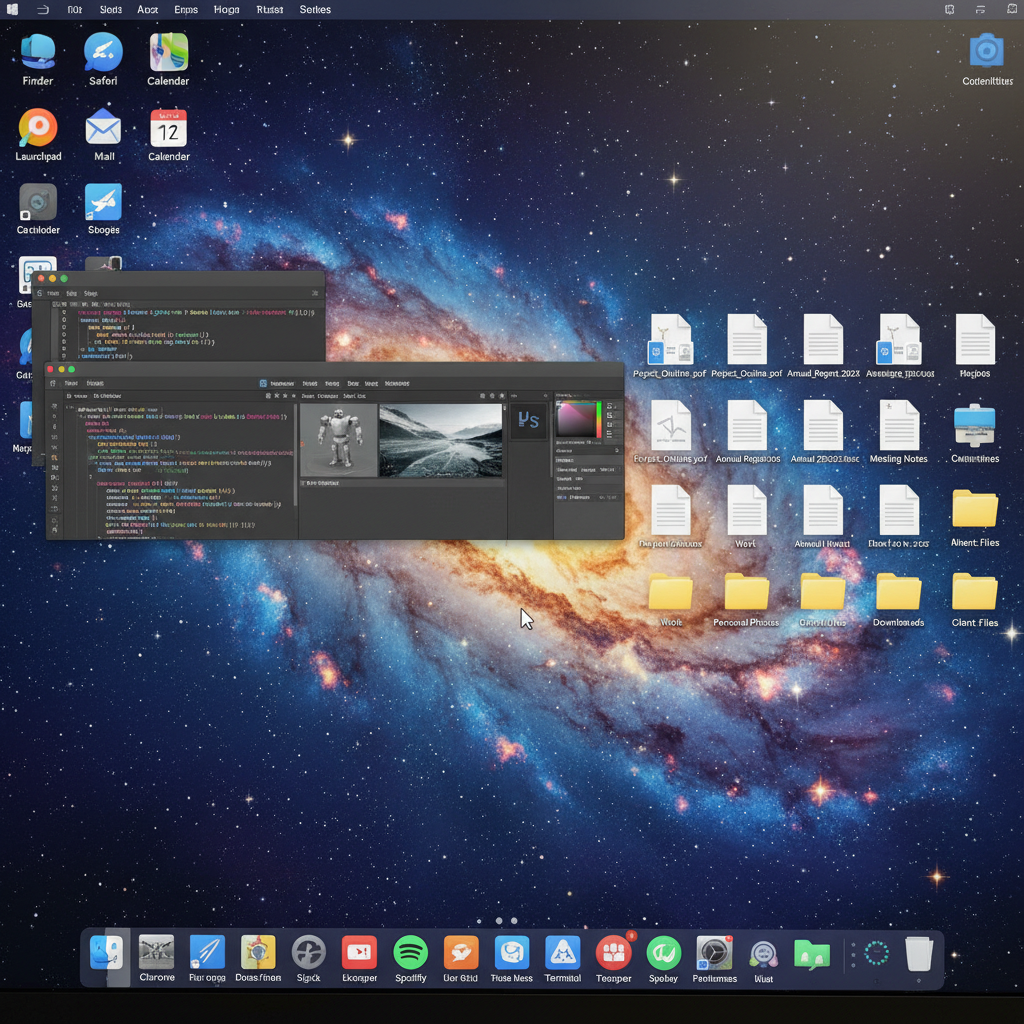 ⚠️ This picture may have spelling mistakes. Trust the words in the lesson.
The Taskbar: Your Digital Command Center
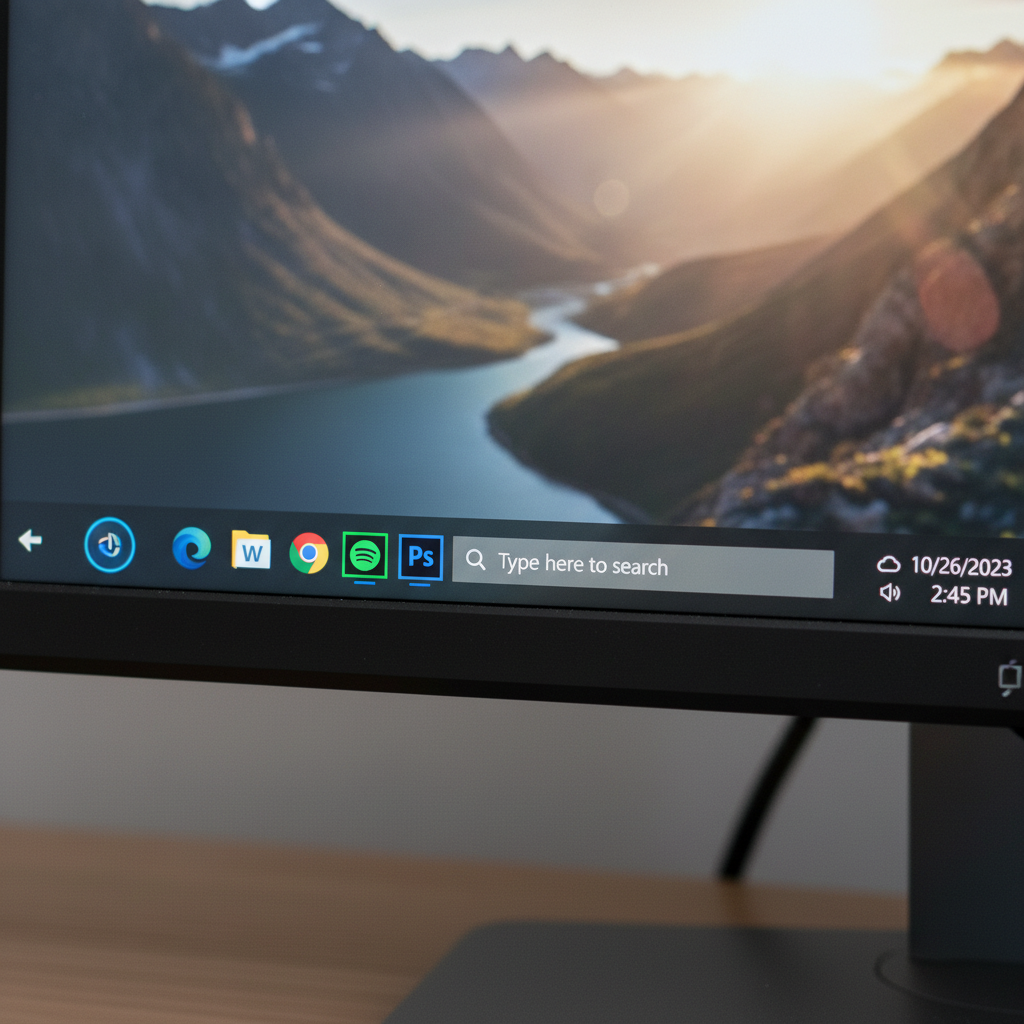
Now, let's look at the bottom of your computer screen. Do you see a long bar stretching across it? That's the Taskbar! Think of the Taskbar like a busy street or a control panel for your computer. It shows you what programs are currently running and gives you quick access to important features.
Analogy: Imagine you're playing with several toys at once. Some are on your desk right in front of you (these are like programs you're actively using), and some are neatly lined up on a shelf, ready to be picked up quickly (these are like programs pinned to your taskbar). The Taskbar is that shelf and also shows you what you're currently playing with!
What You'll Find on the Taskbar:
- The Start Button: Usually found on the far left, this is often a Windows logo or a colorful button. It's like the "main menu" of your computer, or a remote control that lets you choose what you want to do. Clicking it opens a menu with access to all your programs, settings, and even the power button to turn off your computer.
- Pinned Applications: To the right of the Start button, you might see several icons that stay there all the time. These are like your favorite tools or toys that you want to keep handy. You can "pin" programs you use a lot to the Taskbar so you can open them with just one click, instead of searching for their icon on the desktop or in the Start Menu.
- Running Applications: As you open programs, their icons will appear on the Taskbar. These icons represent programs that are currently "open" and running. If you're drawing a picture and writing a story at the same time, you'll see icons for both programs on your Taskbar. Clicking on a running app's icon will bring that program to the front, just like picking up a book you were reading to continue.
- Notification Area (or System Tray): On the far right side of the Taskbar, you'll see a collection of small icons. This is like your computer's message board or status panel. Here, you might see the time and date, icons for your internet connection, the volume control, or little messages from your computer (like "your battery is low!" or "you have updates!").
Using the Taskbar Like a Pro:
- Switching Programs: Have multiple programs open? Just click on their icon on the Taskbar to switch between them instantly. It's like juggling different balls – the Taskbar helps you keep track of all of them!
- Pinning and Unpinning: To pin an app you use often, right-click its icon (either on the desktop or from the Start menu) and look for an option like "Pin to taskbar." To unpin, right-click its icon on the Taskbar and choose "Unpin from taskbar." It's like deciding which toys stay on your shelf and which go back in the toy box.
- Checking Notifications: Keep an eye on the Notification Area for important messages about your computer's health or status.
So, your desktop with its icons is your workspace, and the taskbar is your control center, helping you organize, launch, and switch between all the exciting things you do on your computer!
Keep learning, free
Create a free Syllabax account to unlock practice questions and games for this topic.
Visual Learning Enhanced! 🚀
To help you master this topic, we use Advanced Syllabax AI to generate detailed diagrams and visual models.
Note on Visuals: The AI sometimes makes spelling errors in image labels. Please refer to the lesson text for the correct terminology.