Using Web Browsers Effectively
Watch this topic in 60 seconds
Free preview · Lesson 1
Understanding Using Web Browsers Effectively
Mastering the Web: Using Web Browsers Effectively (Grade 7)
Imagine the internet as a gigantic, bustling city, full of libraries, shops, entertainment centers, and parks. How do you get around this city? You need a vehicle, right? That vehicle for exploring the internet city is called a Web Browser.
A web browser is a special software application that allows you to access and view information on the World Wide Web. Think of it like a magical window or a portal that lets you see all the amazing websites and content out there. Without a browser, the internet would just be a bunch of invisible code!
Popular Web Browsers: Your Internet Vehicles
Just like there are different types of cars (sedans, trucks, SUVs), there are different popular web browsers, each with its own look and feel, but all doing the same core job: helping you explore the internet!
- Google Chrome: Very popular, known for being fast and having lots of add-ons.
- Mozilla Firefox: Another strong contender, often praised for its privacy features.
- Microsoft Edge: Comes built-in with Windows computers, improved to be fast and modern.
- Apple Safari: The default browser for Apple devices like Macs, iPhones, and iPads.
Core Components of Your Browser: The Dashboard and Controls
Every browser has common parts, like the dashboard in a car, that help you navigate. Let's look at the essential controls:
1. The Address Bar (Your GPS for Websites)
At the very top of your browser window, you'll see a long box. This is the Address Bar (sometimes called the URL bar). It's like the GPS or street address input in your car. When you type a website's address (like www.google.com) into this bar and press Enter, your browser takes you directly to that website.
Analogy: If websites are houses in our internet city, the address bar is where you type in the exact street address to find the right one.
2. Navigation Buttons (Back, Forward, Refresh)
Next to the address bar, you'll usually find a few arrow buttons:
- Back Button (<): This takes you to the previous page you visited. If you were on Page A, then went to Page B, clicking Back takes you to Page A.
- Forward Button (>): This takes you to the next page you visited, but only if you've already used the Back button. Think of it as redoing your steps.
- Refresh/Reload Button (↻): This button tells the browser to reload the current page. This is useful if a page isn't loading correctly, or if you want to see if new information has appeared (like new scores on a sports website).
Analogy: These are like the rewind, fast-forward, and replay buttons on a video player, letting you control your viewing experience.
3. Tabs (Multiple Books on One Desk)
One of the most useful features of modern browsers is Tabs. You can open multiple websites at the same time, each in its own tab, without having to open a whole new browser window. Look for small rectangular boxes along the top of your browser, usually next to a '+' sign for opening a new tab.
Analogy: Imagine you're doing homework and need to refer to several different books. Instead of stacking them all up and only opening one at a time, tabs let you have several 'books' (websites) open and easily switch between them on your desk (your browser window).
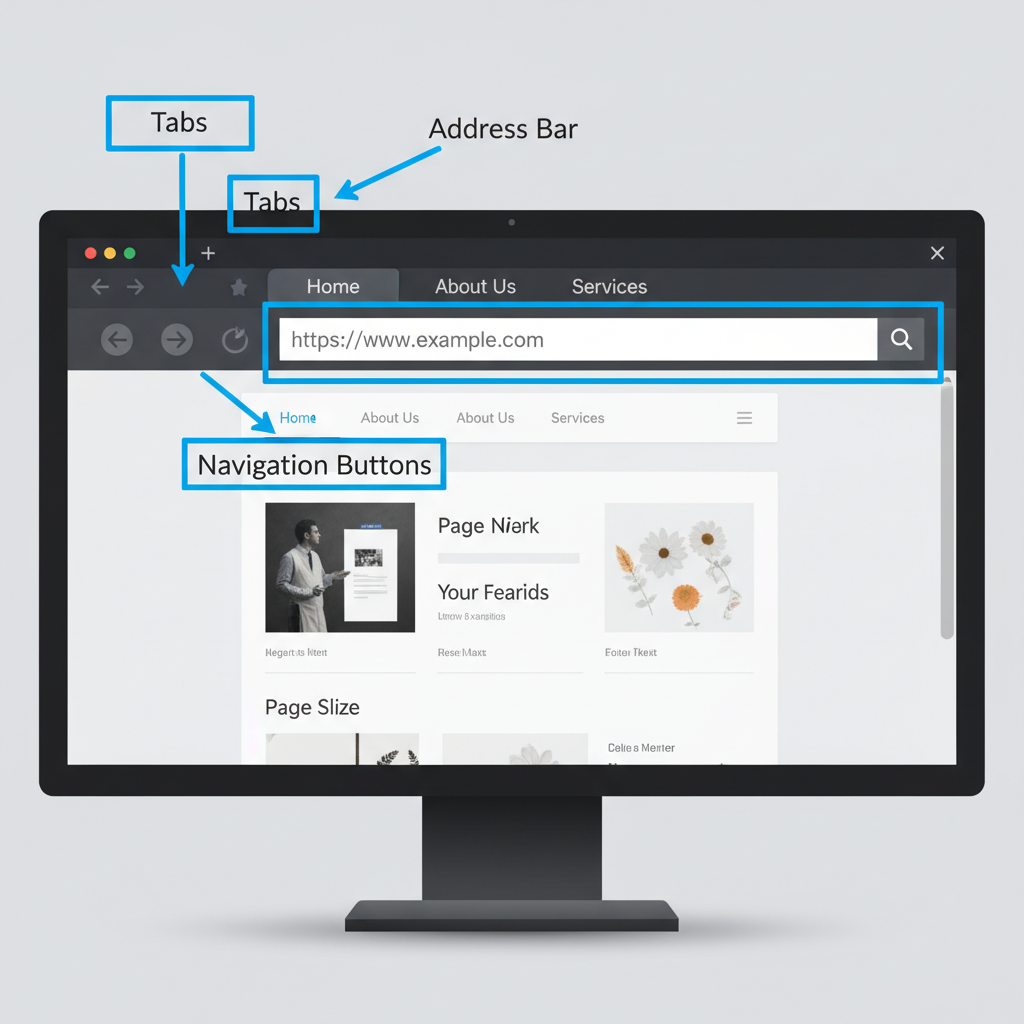 ⚠️ This picture may have spelling mistakes. Trust the words in the lesson.
4. Bookmarks / Favorites (Your Internet Address Book)
When you find a website you really like or use often, you don't want to type its address every time, do you? That's where Bookmarks (or Favorites in some browsers) come in handy. You can save the website's address so you can quickly revisit it with just one click.
Analogy: Bookmarks are like saving your friend's phone number or putting a sticky note on a page in a book. It's a quick way to get back to something important.
5. Search Bar / Search Engine (Your Super-Smart Librarian)
Sometimes you don't know the exact address of a website, but you know what you're looking for (e.g., "recipes for chocolate chip cookies"). This is where a Search Engine helps. Most browsers have a built-in search bar (often combined with the address bar), or you can go to a search engine website directly, like Google, Bing, or DuckDuckGo.
Analogy: A search engine is like a super-smart librarian or a detective who can find almost any piece of information in the vast internet library, just by you telling them a few keywords.
Beyond the Basics: Being an Effective Browser User
Knowing these core parts is great, but here's how to use your browser even more effectively:
- Organize Your Bookmarks: Just like you organize your physical books or files, you can create folders for your bookmarks to keep them tidy.
- Use Multiple Tabs Wisely: Don't open too many tabs! Each tab uses some of your computer's memory, and too many can slow things down. Close tabs you're no longer using.
- Understand Your History: Your browser keeps a record of all the pages you've visited. This "history" can be useful if you need to find a page you saw before but forgot to bookmark. You can also clear your history for privacy.
- Downloads Folder: When you download a file (like a picture, document, or program), your browser usually saves it to a special "Downloads" folder on your computer. Know where to find it!
- Basic Settings: Explore your browser's settings! You can change things like your homepage (the page that opens when you first launch the browser) or your default search engine.
- Incognito/Private Browsing: This special mode allows you to browse without your browser saving your history, cookies, or information entered into forms. It's like wearing a temporary invisibility cloak for your browsing activities on *that specific computer* – helpful for shared computers, but it doesn't make you invisible to websites or your internet provider.
Staying Safe Online: Your Browser's Shield
Your browser also plays a role in keeping you safe. Look for these signs:
- HTTPS and the Padlock Icon: In the address bar, check if a website address starts with
https://(the 's' stands for secure) and if there's a small padlock icon. This means the connection between your browser and the website is encrypted, making it safer for sending sensitive information like passwords. - Think Before You Click: Be cautious of suspicious links, especially in emails or messages. If something looks too good to be true or asks for personal information unexpectedly, it's best to avoid clicking.
Conclusion
Your web browser is a powerful tool, much like a multi-purpose vehicle that can take you to countless destinations. By understanding its basic functions and learning how to use its features effectively, you'll become a much more skilled and confident explorer of the amazing world wide web!
Keep learning, free
Create a free Syllabax account to unlock practice questions and games for this topic.
Visual Learning Enhanced! 🚀
To help you master this topic, we use Advanced Syllabax AI to generate detailed diagrams and visual models.
Note on Visuals: The AI sometimes makes spelling errors in image labels. Please refer to the lesson text for the correct terminology.