File Management & Organization
Watch this topic in 60 seconds
Free preview · Lesson 1
Understanding File Management & Organization
Mastering Your Digital World: File Management & Organization (Grade 9)
Imagine your backpack after a long school year. Is it a chaotic mess of crumpled papers, forgotten snacks, and textbooks shoved in haphazardly? Or is everything neatly sorted, with notebooks in their sections, pens in a pouch, and important papers in a designated folder? Just like an organized backpack makes finding your math homework a breeze, good file management makes finding your digital files easy and stress-free!
What is File Management & Organization?
At its core, file management is simply the process of creating, naming, storing, organizing, finding, and deleting digital information on your computer or device. Think of it as being the librarian of your own digital world.
Analogy: Your Digital Library
Imagine your computer's storage space (like a hard drive or SSD) as a massive library. Without a good system, books would be scattered everywhere. You wouldn't be able to find anything! File management is about creating shelves, sections, and labels so every "book" (file) has its proper place.
Understanding the Basics: Files and Folders
What is a File?
A file is the basic unit of information on your computer. It's a collection of data stored under a single name. Just like a single piece of paper, a specific photograph, or one essay you've written.
- Examples: Your English essay, a photo of your pet, a song you downloaded, a video you recorded, a game you play, a spreadsheet of your grades.
Analogy: A Single Item
Think of a file as a single specific item: a photograph, a letter, a recipe card, or a chapter from a book.
What is a Folder (or Directory)?
A folder (sometimes called a directory) is like a container that holds files and even other folders. It helps you group related items together.
- Examples: A "School Work" folder containing sub-folders for each subject; a "Vacation Photos" folder containing all pictures from a trip.
Analogy: A Physical Folder or Shoebox
Imagine a physical folder in a filing cabinet, or a shoebox where you keep all your mementos from a specific event. These containers hold several related items, keeping them neat and together.
The Power of Structure: How Folders Work Together
Folders aren't just for holding files; they can also hold other folders! This creates a hierarchical structure, like a family tree or an organizational chart. This "tree" structure helps you create a logical path to your files.
Analogy: Nested Boxes
Imagine a large box labeled "School." Inside, you might have smaller boxes labeled "English," "Math," and "Science." Inside the "English" box, you might have even smaller boxes for "Essays," "Reading Notes," and "Projects." This nested system helps you quickly narrow down where to look for something specific.
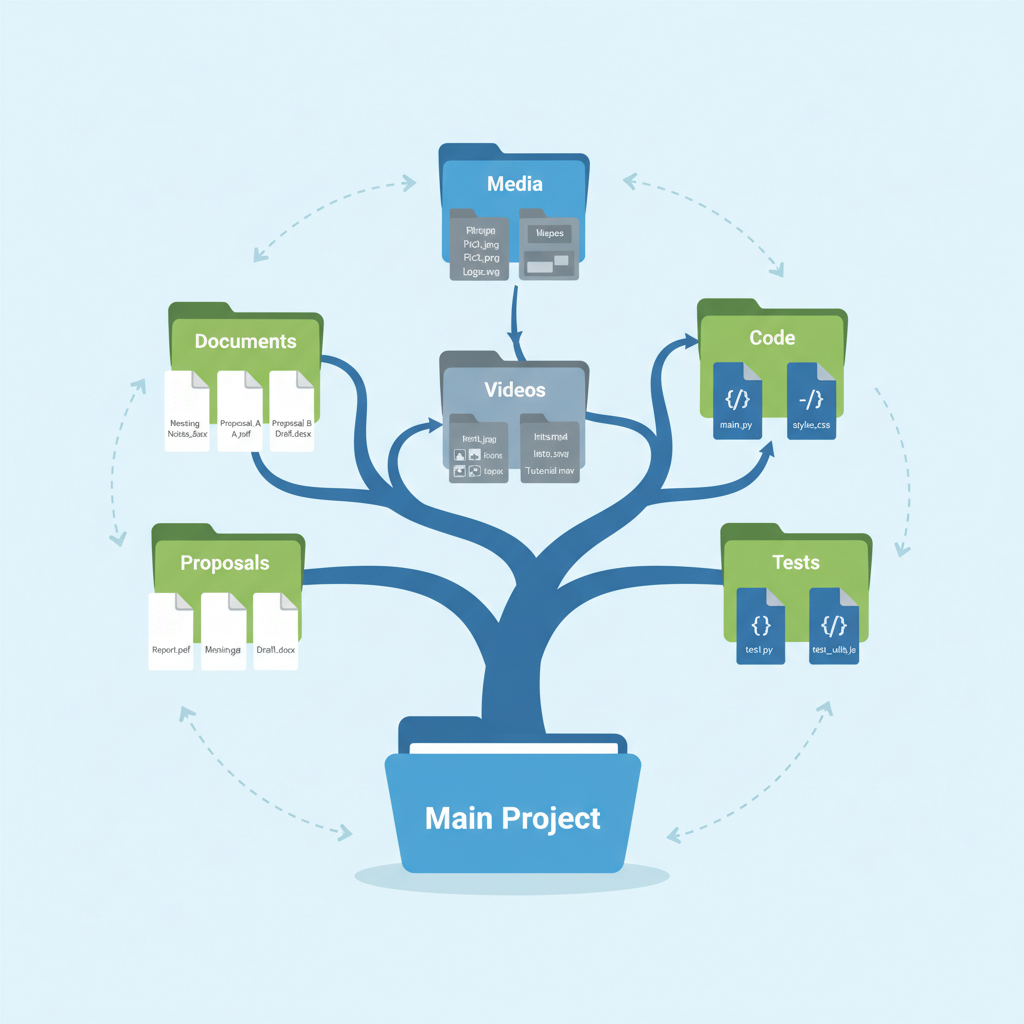 ⚠️ This picture may have spelling mistakes. Trust the words in the lesson.
Essential File Operations: Managing Your Digital Assets
1. Creating Files and Folders
You'll often create new files (e.g., a new document in Word) and new folders to organize them. This is usually done by right-clicking in a file explorer window and selecting "New" then "Folder" or the desired file type.
2. Naming and Renaming
Choosing descriptive names for your files and folders is crucial. "Essay_final_final_v2.docx" is less helpful than "English_ArgumentativeEssay_TopicA_Draft3.docx".
- Tip: Use names that clearly indicate content, date (e.g., YYYY-MM-DD), and version if applicable. Avoid special characters like / \ : * ? " < > | as they can cause problems.
Analogy: Labeling Boxes
Would you rather search through unlabeled boxes or boxes clearly marked "Winter Clothes," "Summer Clothes," and "Old Books"? Clear labels save time and frustration.
3. Saving Files
When you create or edit a file, you need to save it. This means telling the computer exactly where to store it on your device. Always pay attention to the "Save As" or "Save" dialog box to ensure your file goes into the correct folder.
4. Moving and Copying (Cut, Copy, Paste)
- Copy: Makes an exact duplicate of a file or folder in a new location, leaving the original untouched.
- Move: Relocates a file or folder from its original spot to a new one, removing it from the old location.
Analogy: Photocopying vs. Moving a Book
Copying is like photocopying a page from a book – you now have two identical pages. The original book (file) stays where it is. Moving is like taking a book from one shelf and placing it on another – the book is no longer on the first shelf.
5. Deleting Files and Folders (and the Recycle Bin/Trash)
When you no longer need a file or folder, you can delete it. On most operating systems, deleted items aren't immediately gone forever. They go into a temporary holding area called the Recycle Bin (Windows) or Trash (macOS). This gives you a chance to recover items you deleted by mistake.
Analogy: The Wastebasket with a Liner
It's like throwing something into a wastebasket with a removable liner. It's "deleted" from your desk, but if you quickly realize you need it, you can fish it out of the liner before it's emptied into the main trash can (permanently deleted).
6. Searching for Files
If you forget where you saved something, your operating system has powerful search tools. You can often search by file name, file type, date modified, or even keywords within documents.
What is a File Path?
A file path is like a digital address that tells your computer exactly where a file or folder is located. It lists all the folders you need to go through, starting from the very top (the root) of your storage device.
Example: C:\Users\YourName\Documents\School\English\MyEssay.docx
Analogy: A Street Address
Just like a street address guides you to a specific house (e.g., 123 Main Street, Anytown, State, Zip), a file path guides the computer to a specific file. Each folder in the path is like a street or city you pass through.
The Secret Code: File Extensions
Have you ever noticed the letters after the dot in a file name, like .docx, .jpg, or .mp3? These are called file extensions. They tell your computer (and you!) what type of file it is and which program should open it.
.docx: Microsoft Word Document (text document).pdf: Portable Document Format (viewable document, often for sharing).jpgor.png: Image files (photos, graphics).mp3: Audio file (music).mp4: Video file.pptx: Microsoft PowerPoint Presentation
Analogy: A Label on a Container
Think of a file extension as a label on a container. A jar labeled "Sugar" tells you it contains sugar and should be used for baking. A jar labeled "Coffee" tells you it contains coffee and should be brewed. Similarly, .jpg tells your computer "This is an image, open it with a photo viewer!"
Best Practices for a Tidy Digital Life
- Create a Logical Folder Structure: Before you start saving, think about how you want to organize your main categories (e.g., "School," "Personal," "Projects," "Downloads"). Then break them down into subfolders.
- Be Consistent with Naming: Stick to a naming convention (e.g., always "YYYY-MM-DD_ProjectName_Version").
- Save Thoughtfully: Don't just hit "Save" without knowing where the file is going. Use "Save As" if necessary to put it in the right place.
- Regularly Clean Up: Just like tidying your physical space, periodically go through your "Downloads" folder or old project folders and delete or move unnecessary files.
- Empty the Recycle Bin/Trash Periodically: Once you're sure you don't need deleted items, empty the bin to free up space.
- Backup Important Files: This is crucial! Keep copies of important files on an external hard drive, USB stick, or cloud storage (like Google Drive or OneDrive) in case your computer fails.
By following these simple guidelines, you'll transform your digital world from a chaotic mess into an organized, efficient, and stress-free environment, making it easier to find what you need, when you need it!
Keep learning, free
Create a free Syllabax account to unlock practice questions and games for this topic.
Visual Learning Enhanced! 🚀
To help you master this topic, we use Advanced Syllabax AI to generate detailed diagrams and visual models.
Note on Visuals: The AI sometimes makes spelling errors in image labels. Please refer to the lesson text for the correct terminology.