Operating System Fundamentals
Watch this topic in 60 seconds
Free preview · Lesson 1
Understanding Operating System Fundamentals
Operating System Fundamentals: Your Computer's Brain
Welcome, 8th graders! Have you ever wondered what makes your computer, tablet, or smartphone actually *work*? It's not just the screen or the keyboard. There's a brilliant, invisible manager working behind the scenes, making everything run smoothly. That manager is called the Operating System (OS).
What is an Operating System? The Grand Conductor!
Imagine your computer as a giant orchestra. You have violins (the screen), trumpets (the speakers), drums (the keyboard), and many other instruments (all the parts inside your computer). Now, who makes sure all these instruments play together in harmony to create beautiful music? The orchestra conductor!
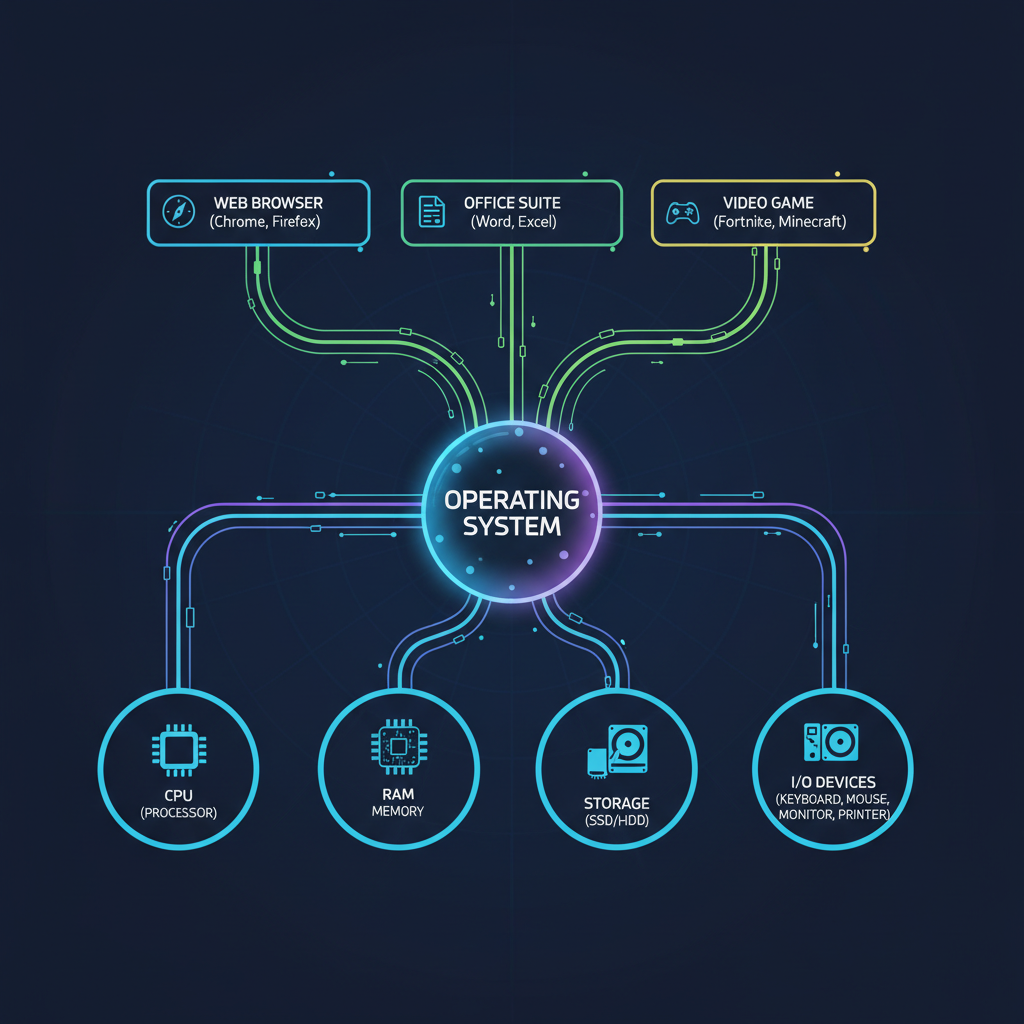
That's exactly what an Operating System is. It's the master program that manages all the computer hardware and software resources. It's the first program loaded when you turn on your computer, and it stays running all the time, making sure everything works correctly. Without an OS, your computer would just be a pile of very expensive metal and plastic, unable to do anything useful!
Think of it another way: The OS is like a traffic cop for your computer. It directs all the different tasks (like opening a game, typing a document, or watching a video) and makes sure they don't crash into each other or hog all the resources. It ensures everything flows smoothly and efficiently.
The OS's Superpowers: What Does it Actually Do?
An operating system has several incredibly important jobs. Let's explore its main 'superpowers':
1. Managing the Computer's Brain: The CPU Manager
Your computer's brain is called the Central Processing Unit (CPU). The CPU is super fast, but it can only do one thing at a time. However, it can switch between tasks so quickly that it *looks* like it's doing many things at once. For example, you might be typing a school report, listening to music, and downloading a new game all at the same time.
The OS acts like a master chef juggling many orders in a busy kitchen. It decides which task the CPU should work on at any given moment and for how long. It ensures that every program gets a fair turn at the CPU, so your music doesn't suddenly stop while your game downloads, or your keyboard input doesn't get ignored.
2. Managing Memory: The Smart Workbench
Your computer has a type of short-term memory called RAM (Random Access Memory). Think of RAM as your workbench or desk. When you're working on something (like editing a photo or playing a game), the computer needs to quickly access the information related to that task. This information is temporarily placed on the RAM workbench.
The OS is like the librarian of this workbench. It decides where each piece of information should go on the workbench, making sure there's enough space for everything you're currently using. When you close a program, the OS clears its space on the workbench, making room for new tasks. If your workbench gets too full, your computer might slow down, because the OS has to keep moving things around or fetching them from slower long-term storage.
3. Managing Files and Folders: The Organized Filing Cabinet
Where do all your photos, documents, games, and videos go when you save them? They go into your computer's long-term storage, like a hard drive (HDD) or a Solid State Drive (SSD). The OS is responsible for organizing all these files and folders.
Imagine your computer's storage as a giant, incredibly organized filing cabinet. The OS acts as the meticulous office manager. It knows exactly where every single file is located, no matter how many you have. When you click 'save' or 'open', the OS is the one that finds the right drawer (folder) and the right document (file) for you. It also makes sure files don't accidentally overwrite each other and handles permissions (who can access what).
4. Handling Input and Output (I/O): The Universal Translator
How does your computer understand when you press a key on the keyboard, click a mouse, or speak into a microphone? And how does it show you images on the screen, play sounds through speakers, or print a document?
This is where Input/Output (I/O) management comes in. The OS is like a universal translator and director for all your computer's devices. It takes signals from input devices (like your keyboard telling it 'you pressed A') and translates them into something the CPU can understand. Then, it takes information from the CPU and translates it for output devices (like telling the screen 'display this image' or the printer 'print this page'). It ensures that all these devices communicate properly with each other and with the rest of the computer.
5. Providing a User Interface (UI): Your Command Center
How do you actually tell your computer what to do? You don't type complex codes for every action! Instead, you use a User Interface (UI). This is the part of the OS you see and interact with.
Most modern operating systems use a Graphical User Interface (GUI - pronounced 'gooey'). Think of it like the dashboard of a car. Instead of having to understand all the complicated parts under the hood, you get a steering wheel, pedals, and gauges that are easy to use. Similarly, a GUI uses windows, icons, menus, and pointers (like your mouse cursor) to let you interact with the computer easily, without needing to know any programming code.
Older systems or some specialized systems use a Command Line Interface (CLI), where you type text commands to interact. It's like talking directly to the computer in its own language, which can be powerful but less user-friendly.
Popular Operating Systems
You probably already use one! Here are some common examples:
- Windows: Found on most desktop and laptop computers worldwide.
- macOS: Used on Apple's Mac computers.
- Linux: An open-source OS often used by programmers, servers, and for custom projects.
- Android: The most popular OS for smartphones and tablets.
- iOS: Apple's operating system for iPhones and iPads.
Conclusion: The Unsung Hero
So, the next time you open an app, save a file, or listen to music on your device, remember the amazing, hardworking operating system. It's the unsung hero, the grand conductor, the traffic cop, and the master chef, all rolled into one, making your digital life possible and enjoyable! It truly is the fundamental software that makes all other software work.
Keep learning, free
Create a free Syllabax account to unlock practice questions and games for this topic.
Visual Learning Enhanced! 🚀
To help you master this topic, we use Advanced Syllabax AI to generate detailed diagrams and visual models.
Note on Visuals: The AI sometimes makes spelling errors in image labels. Please refer to the lesson text for the correct terminology.