Basic Animation Concepts
Watch this topic in 60 seconds
Free preview · Lesson 1
Understanding Basic Animation Concepts
Welcome to the Magical World of Animation!
Have you ever watched a cartoon and wondered how the characters come to life on the screen? It's not magic, but it sure looks like it! Animation is like telling a story with pictures that move. Think of it as a super cool trick that makes still drawings or objects seem like they're dancing, running, and even flying!
What is Animation? The Grand Illusion!
At its heart, animation is an illusion. An illusion is something that looks real but isn't quite what it seems. Like when a magician makes a coin disappear! Animation makes still pictures look like they are moving smoothly. It’s like flipping through a flipbook really, really fast. Each page has a slightly different drawing, and when you flip them quickly, your brain connects them all together to see motion!
Concept 1: Frames – The Building Blocks of Movement
Imagine you're taking a super-fast camera and snapping hundreds of pictures every second. Each single picture is called a frame. In animation, a frame is one single drawing or image. It's like one tiny piece of a puzzle, but when you put all the pieces (frames) together in the right order and show them quickly, you see the full picture – which is movement!
Think of a comic book. Each box in a comic book is like a frame. If you could somehow scroll through those boxes super fast, the characters inside would look like they were moving!
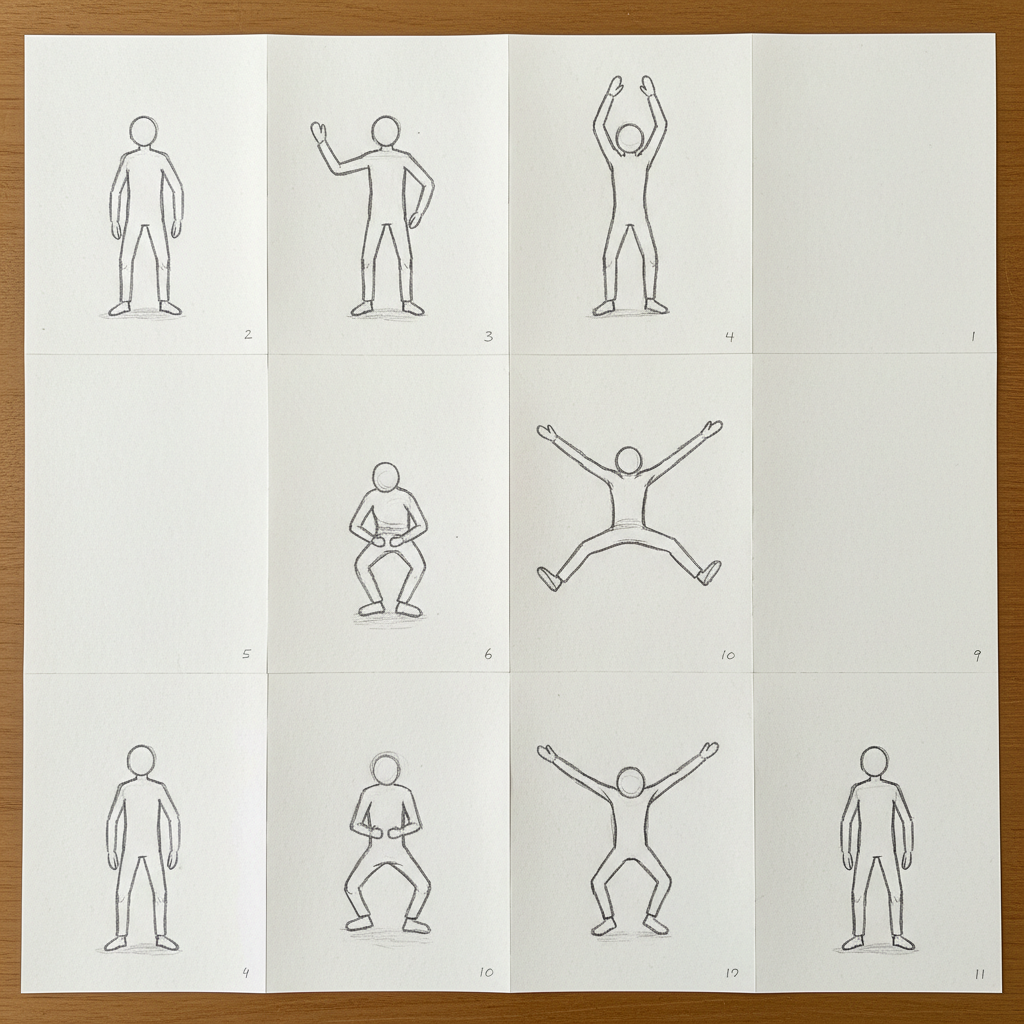
Concept 2: Persistence of Vision – How Your Eyes Play Tricks!
Why does flipping pictures fast make them look like they're moving? This amazing trick is thanks to something called persistence of vision. This is how your eyes and brain work together. When you see a picture, your eye holds onto that image for a tiny fraction of a second, even after the picture is gone.
So, when animators show you lots of frames one after another, very quickly, your brain doesn't see them as separate pictures. Instead, it blends them together! It’s like when you spin a sparkler around in the dark, you see a continuous circle of light, not just a bunch of separate dots. Your brain fills in the gaps!
Concept 3: The Illusion of Motion – Connecting the Dots
So, we have frames (individual pictures) and persistence of vision (our brain blending them). When you combine these, you get the illusion of motion. Animators create many frames, each with a character or object in a slightly different position. When these frames are shown rapidly (usually 24 frames per second for movies!), our eyes and brain connect these tiny changes, and suddenly, a character is running, jumping, or waving!
Imagine you have a toy car. If you take a picture of it, then move it a tiny bit and take another picture, and keep doing that, you'll have many pictures. If you look at them one after another very quickly, it will look like the car is driving all by itself!
Concept 4: Timing and Spacing – Fast, Slow, and Everything in Between!
How do animators make something look like it's moving fast or slow, heavy or light? That's where timing and spacing come in. These are super important for making animation feel real and exciting!
-
Timing: This is about how long an action takes. If a character waves goodbye really fast, it will only take a few frames. If they wave slowly, it will take many more frames. More frames for an action usually means it looks slower, and fewer frames means it looks faster.
Analogy: Think about running a race. If you run fast, you get to the finish line quickly (fewer frames). If you jog slowly, it takes longer (more frames). -
Spacing: This is about how far an object moves between each frame. If an object moves a lot in just one frame (big jump in position), it will look like it's moving fast. If it moves just a tiny bit between frames, it will look slower and smoother.
Analogy: Imagine drawing a bouncing ball. If the ball moves a big distance down the page in one drawing, it will look like it's falling fast. If it only moves a tiny bit, it will look like it's floating gently.
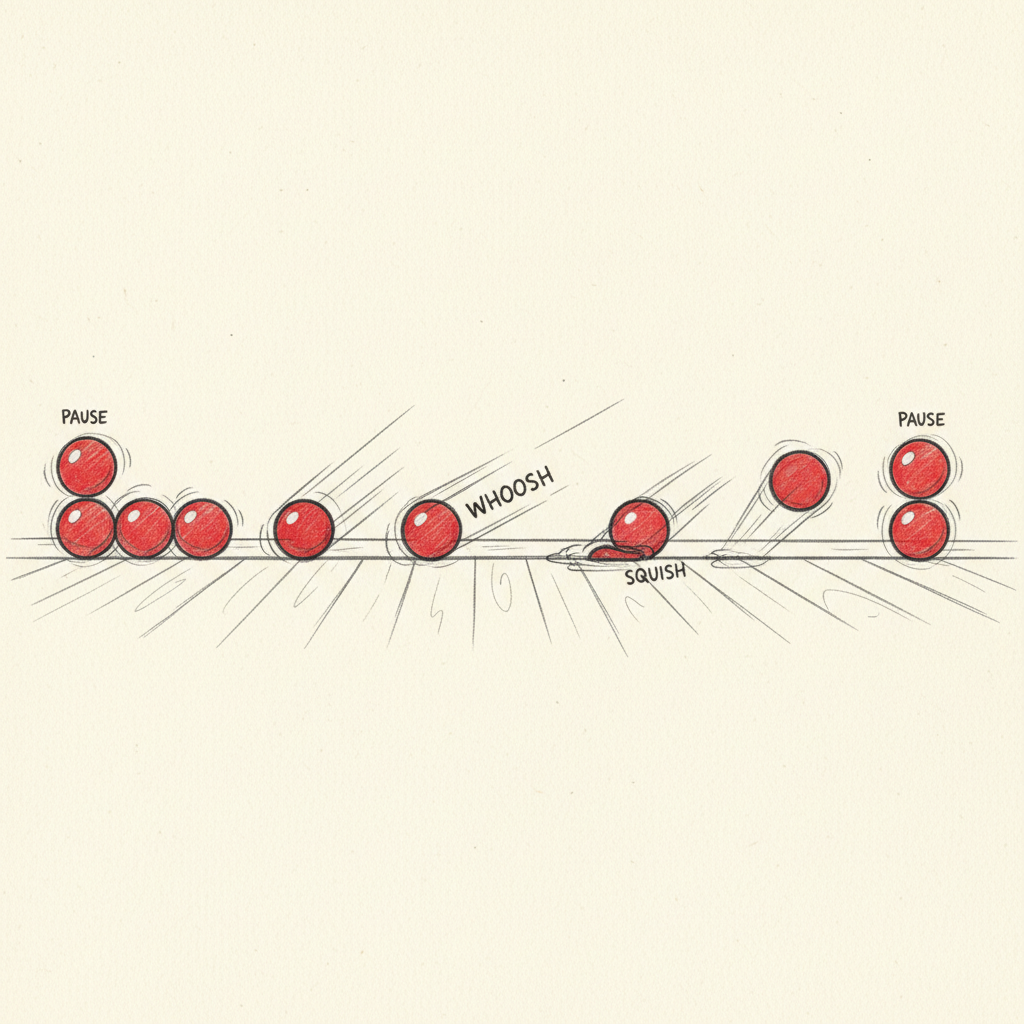
Concept 5: Keyframes and In-betweening – The Main Poses and the Fillers!
Imagine you're drawing a picture of someone jumping. You wouldn't draw every single tiny movement, would you? You'd probably draw the start of the jump (crouching down), the highest point of the jump (in the air), and the landing (feet on the ground). These important drawings are called keyframes.
- Keyframes: These are the most important drawings or poses in an animation. They show the character or object at key moments in an action, like the beginning, middle, and end of a movement. They are like the main points on a treasure map!
- In-betweening: Once the keyframes are drawn, someone (or a computer!) fills in all the drawings that go between the keyframes. These are called the 'in-betweens.' They connect the keyframes smoothly, so the movement looks continuous. It’s like drawing all the steps you take between the starting point and the finish line of a race.
So, an animator might draw a keyframe of a character standing, then another keyframe of them sitting down. The 'in-between' drawings would show them bending their knees, slowly lowering themselves, and finally reaching the sitting position.
Bringing It All Together: The Magic Behind the Scenes
Animation is a wonderful blend of art and science. It uses our eyes' natural ability to see motion from still images and combines it with clever drawing, careful timing, and lots of creativity. From simple flipbooks you can make at home to big computer-animated movies, all animation uses these basic ideas.
So next time you see your favorite cartoon character leap across the screen, remember the thousands of frames, the clever timing, and the amazing trick your eyes and brain are playing to make that magic happen!
Keep learning, free
Create a free Syllabax account to unlock practice questions and games for this topic.
Visual Learning Enhanced! 🚀
To help you master this topic, we use Advanced Syllabax AI to generate detailed diagrams and visual models.
Note on Visuals: The AI sometimes makes spelling errors in image labels. Please refer to the lesson text for the correct terminology.