Turning Computers On & Off
Watch this topic in 60 seconds
Free preview · Lesson 1
Understanding Turning Computers On & Off
Learning About Turning Computers On and Off!
Hello, young tech explorers! Today, we're going on an adventure to learn how to make our computer friends wake up and go to sleep safely. Just like you wake up in the morning and go to sleep at night, computers need special ways to start working and to rest. Let's find out how!
What is a Computer?
First, what exactly is a computer? Imagine a super-smart helper, like a magical box or a special book, that can do many amazing things! It can help you draw pictures, play fun learning games, watch videos, and even talk to friends and family far away. It's like having a helpful robot friend that lives inside your screen and keyboard. But just like a robot needs to be turned on to move, a computer needs to be turned on to start its magic!
How Do We Wake Up Our Computer Friend? (Turning On)
To make your computer friend start working, you need to wake it up! This is called 'turning on' the computer. It's like pressing the 'start' button on a toy car or waking up a sleepy teddy bear. Let's see how:
Finding the Power Button
Every computer has a special button called the Power Button. It's usually a small round button or a button with a special symbol. The symbol looks like a circle with a small line sticking out from the top (⏻). This symbol means 'power'!
- On a Desktop Computer: If you have a big computer with a separate screen and a boxy part (called the 'tower'), the power button is usually on the front of that big box. You might also find a power button on the screen itself.
- On a Laptop Computer: If you have a computer that folds shut like a book (a laptop), the power button is usually somewhere above the keyboard, near the screen, or on the side.
Pressing the Power Button
Once you find the power button, gently press it down. You might hear a small click. Then, watch what happens!
The computer will start to 'wake up.' You might see a light turn on, hear a little whirring sound (like a tiny fan starting), and then the screen will light up. It's like the computer is rubbing its eyes and stretching before it's ready to play!
 ⚠️ This picture may have spelling mistakes. Trust the words in the lesson.
Waiting for Your Computer to Be Ready
After you press the power button, the computer needs a little time to get ready. You might see some pictures or words flash on the screen. This is like the computer getting its brain in order, making sure all its parts are awake and working correctly. It's called 'booting up.' When you see your colorful desktop picture with all your icons (the little pictures for games and programs), your computer is ready to go!
Why Is Turning Off Our Computer Friend Important? (Shutting Down)
Just like you need to rest after a long day of playing, your computer needs to rest too! When we are finished using the computer, it's very important to turn it off correctly. This is called 'shutting down' the computer.
Why Shut Down Properly?
- Keep it Healthy: Turning off the computer correctly helps it stay healthy and work well for a long time. It's like putting your toys away neatly so they don't get broken or messy.
- Save Your Work: If you're working on a drawing or a story, shutting down properly gives the computer time to save all your hard work. If you just pull the plug, your work might get lost!
- Save Energy: When the computer is off, it doesn't use much electricity, which is good for our planet and helps save power.
How Do We Tuck Our Computer Friend Into Bed? (Shutting Down Properly)
This is a very important step! You never just pull the plug out of the wall like unplugging a lamp. That's like suddenly waking someone up from a deep sleep with a loud noise – it's not good for them!
Steps to Shut Down
- Find the Start Button: Look for a button on the very bottom left corner of your computer screen. It usually looks like a small window or a round button with a symbol. This is your 'Start' button. Click on it!
- Find the Power Icon: When you click the Start button, a menu will pop up. Look for that same power symbol (⏻) that we saw on the power button. It might be labeled 'Power' or just be the symbol itself. Click on it!
- Choose 'Shut Down': Another small menu will appear. You will see choices like 'Sleep,' 'Restart,' and 'Shut Down.' We want to choose 'Shut Down' to turn the computer completely off. Click on 'Shut Down.'
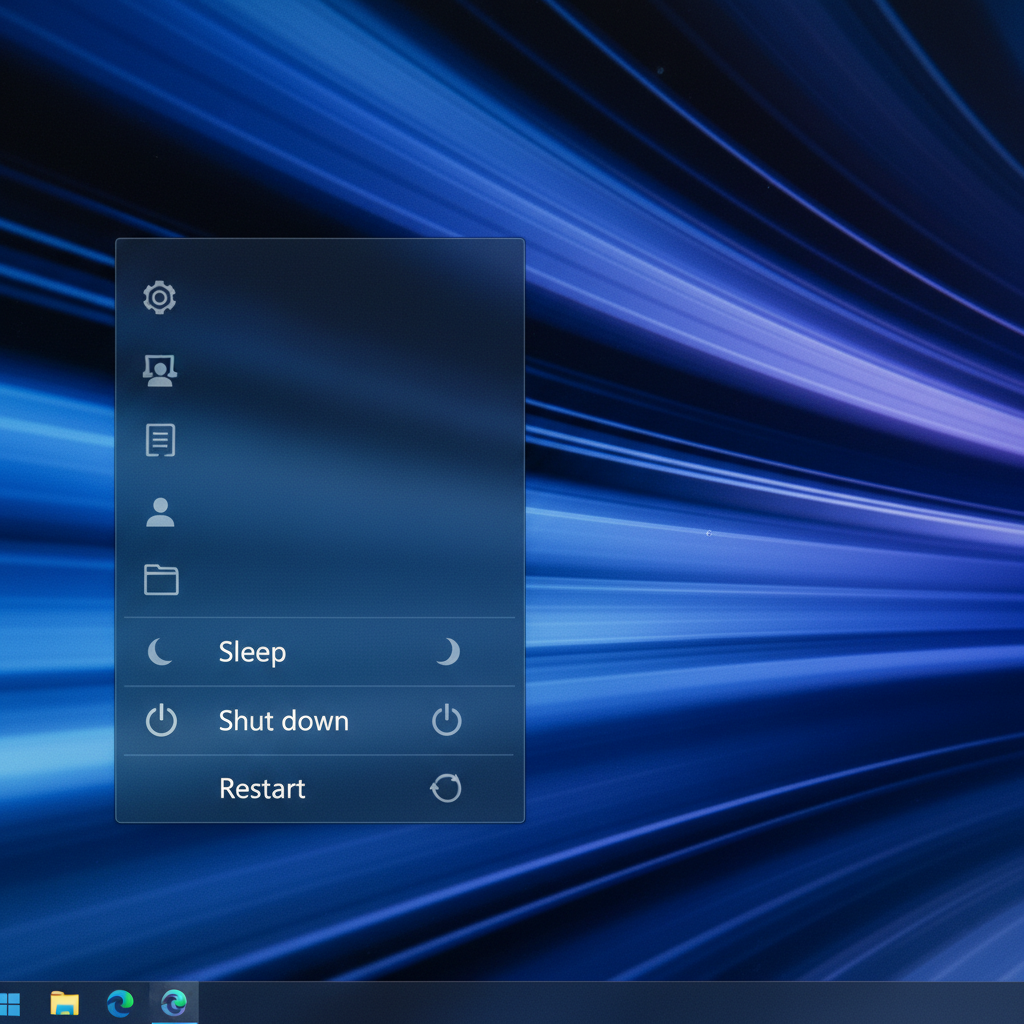
What Happens Next?
After you click 'Shut Down,' the computer will start to close all its programs (like putting all your toys back in the toy box). The screen will go dark, and any lights on the computer will turn off. You might hear a little click, and then it will be completely quiet. Your computer friend is now safely asleep!
Other Power Options (Quick Look)
- Sleep: This is like taking a quick nap. The computer remembers everything you were doing but uses very little power. It wakes up super fast when you need it again.
- Restart: This means the computer turns off for a very short moment and then immediately turns itself back on. It's like giving your computer a quick stretch and fresh start if it feels a little slow.
Important Reminders!
- Always ask a grown-up if you're not sure how to turn a computer on or off.
- Never, ever pull the plug out of the wall to turn off a computer. Always use the 'Shut Down' option!
- Turning computers on and off correctly helps keep them happy and working well for all your learning and playing fun!
Great job, tech explorers! Now you know how to safely wake up and tuck in your computer friend. Keep practicing, and you'll be a computer power expert in no time!
Keep learning, free
Create a free Syllabax account to unlock practice questions and games for this topic.
Visual Learning Enhanced! 🚀
To help you master this topic, we use Advanced Syllabax AI to generate detailed diagrams and visual models.
Note on Visuals: The AI sometimes makes spelling errors in image labels. Please refer to the lesson text for the correct terminology.