Introduction to Email: Sending & Receiving
Watch this topic in 60 seconds
Free preview · Lesson 1
Understanding Introduction to Email: Sending & Receiving
Introduction to Email: Sending & Receiving (Grade 5)
Hey there, future digital explorers! Today, we're going on an exciting adventure into the world of email. Have you ever sent a letter to a friend or relative? Email is a bit like sending letters, but it’s super-fast and totally digital! Instead of paper, stamps, and a mailbox, we use computers, tablets, or phones to send messages across the world in just seconds.
What is Email? Your Digital Mailbox!
Imagine you want to send a drawing to your cousin who lives far away. With a regular letter, you'd draw it, put it in an envelope, put a stamp on it, and drop it in a physical mailbox. Days later, your cousin would get it. Email (short for 'electronic mail') lets you send that same drawing (or a message, a photo, or even a video!) to your cousin almost instantly!
Think of your email account like your own special digital mailbox. No one else can open your mail, and you can send mail from it too! It's a private place for your messages.
Your Email Address: Your Digital Home Address
Just like your house has a unique address (like 123 Main Street) so the mail carrier knows where to deliver your letters, your email account has a unique email address. This address tells the internet exactly where to send your messages.
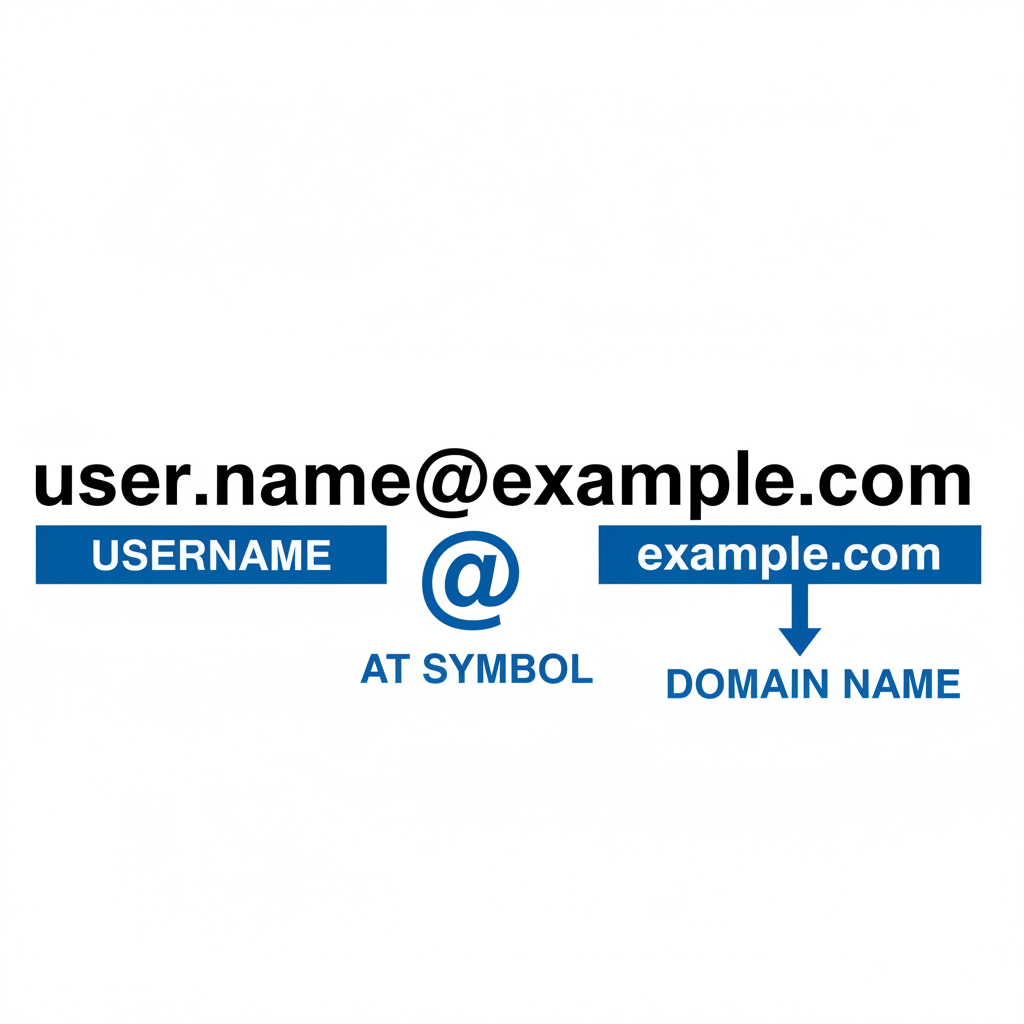
An email address always looks something like this: yourname@example.com
- Your Name (or Username): This is the first part, like 'sparklefrog' or 'johnsmith7'. It's your unique name on that email system.
- @ (pronounced 'at'): This symbol always separates your name from the service you're using.
- Example.com (or Domain Name): This part tells you which email service you're using, like Gmail, Outlook, Yahoo Mail, or your school's email system. It's like the name of the post office that handles your mail!
So, if your email is 'coolkid@fastmail.com', it means 'coolkid' is your name, and you're using the 'fastmail' service!
Sending an Email: Becoming a Digital Mail Carrier!
Ready to send your first email? It's like writing a letter, but with a few digital twists!
- To: This is where you type the email address of the person you want to send the message to. It's like writing the recipient's address on the envelope.
- Subject: This is a short, catchy title for your email, like the title of a book or movie. It tells the person what your email is about before they even open it! For example, 'My Weekend Adventure' or 'Homework Question'.
- Body: This is the main part of your email, where you write your message. You can type, use emojis, and even change text colors or sizes! It's like the actual letter inside the envelope.
- Attachments (Optional): Want to send a picture, a drawing you scanned, or a cool document? You can 'attach' these files to your email. Think of it like putting a photo or a small gift inside the envelope with your letter. There's usually a paperclip icon to click for attachments.
- Send Button: Once you've written everything and checked it, you click the 'Send' button. POOF! Your email zooms across the internet, arriving in the recipient's inbox almost instantly. It's like putting your letter in a super-fast, magical mailbox!
Receiving an Email: Checking Your Digital Mailbox!
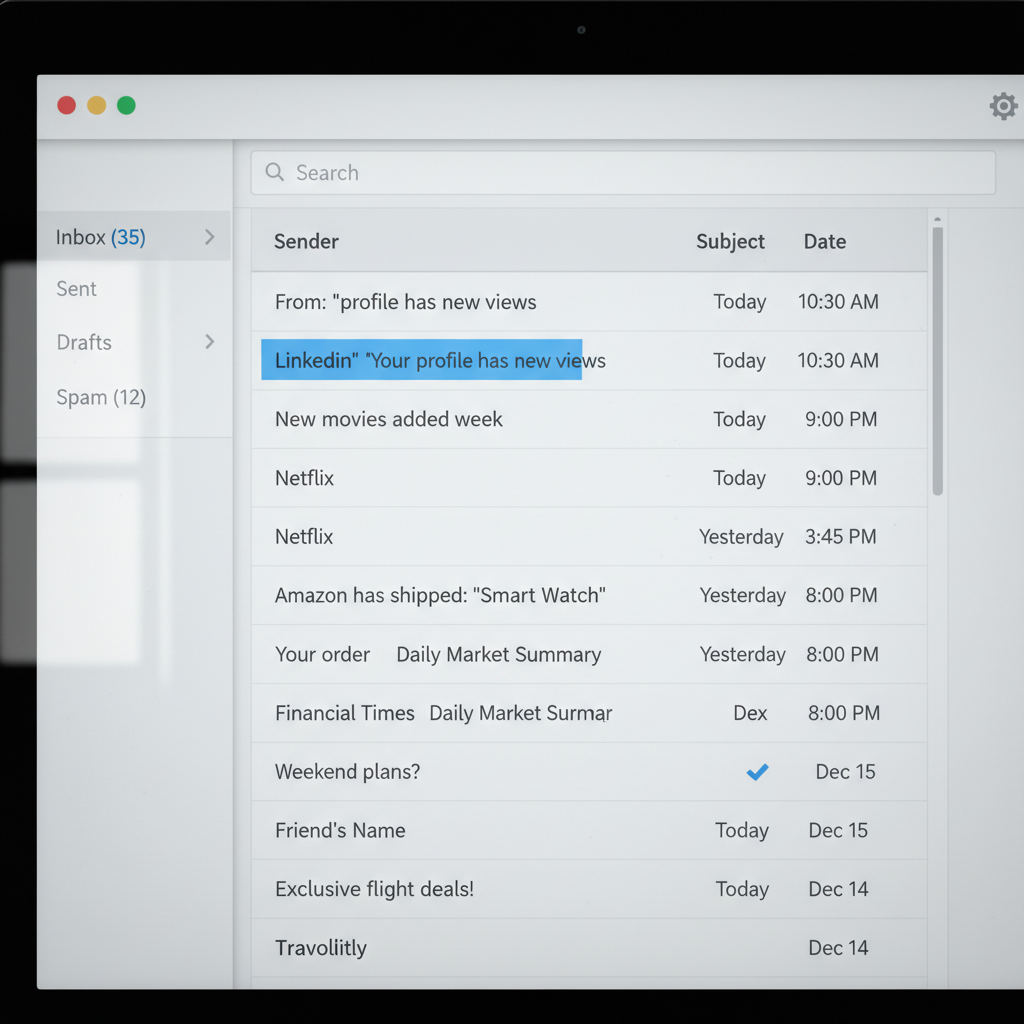
Just as you can send emails, you'll also receive them! When someone sends you an email, it lands in a special place called your 'Inbox'.
- Inbox: This is like the 'incoming' section of your digital mailbox. All the emails people send you will show up here, usually with the sender's name and the subject line so you can see who sent what.
- Opening an Email: To read an email, you simply click on it. It will open up, showing you the full message.
- Replying: Want to answer the person who sent you the email? You click the 'Reply' button. This automatically fills in their email address so you can type your answer and send it right back! It's like talking back to someone who spoke to you.
- Forwarding: If someone sends you an email that you think another friend would like to see, you can 'Forward' it to them. This sends the original email's content to a new person you choose. It's like sharing a funny comic strip you got in the mail with another friend.
 ⚠️ This picture may have spelling mistakes. Trust the words in the lesson.
Email Etiquette and Safety (Digital Manners!)
Just like there are rules for being polite in person, there are rules for email too!
- Be Polite: Always use kind words, greetings like 'Hello' or 'Hi,' and 'Thank You' or 'Sincerely' at the end.
- Clear Subject Lines: Make your subject clear so people know what your email is about.
- Don't Share Personal Info: Never share your home address, phone number, or other private details with people you don't know well online.
- Think Before You Click: Don't open emails or click on links from people you don't recognize or trust. If something looks suspicious, ask an adult!
Email is a powerful tool for communication, connecting you with friends, family, and teachers. With a little practice, you'll be a super sender and a savvy receiver in no time!
Keep learning, free
Create a free Syllabax account to unlock practice questions and games for this topic.
Visual Learning Enhanced! 🚀
To help you master this topic, we use Advanced Syllabax AI to generate detailed diagrams and visual models.
Note on Visuals: The AI sometimes makes spelling errors in image labels. Please refer to the lesson text for the correct terminology.