Saving and Retrieving Files
Watch this topic in 60 seconds
Free preview · Lesson 1
Understanding Saving and Retrieving Files
Let's Learn About Saving and Retrieving Files!
Hello, super computer explorers! Today, we're going on an adventure to learn two very important things your computer can do: Saving and Retrieving files. Think of your computer like a magic art studio or a wonderful toy chest. When you create something on your computer, like a drawing, a story, or a game, it's a bit like playing with toys or drawing a picture. But if you don't save it, it might disappear! Just like if you build a tower of blocks but don't take a picture, it's gone when you pack up.
What is a 'File'?
First, let's understand what a 'file' is. On a computer, a file is simply a piece of information or work you've created or used. It could be:
- Your super cool drawing you made in a paint program.
- A story you typed using a word processor.
- A picture you took with a digital camera.
- Even a video you watched!
Imagine each file is like a single piece of paper with something special written or drawn on it. If you have many drawings, you have many files!
Part 1: Saving Your Files – Putting Your Work Away Safely!
When you're drawing a picture on a piece of paper, what do you do when you're finished and want to keep it? You put it somewhere safe, right? Maybe in a binder, a folder, or on the fridge! Saving a file on a computer is exactly like that.
Why Do We Need to Save?
When you're working on a computer, everything you do is usually only in the computer's 'brain' (its memory) for a short time. If the computer turns off, or if the program you're using closes by accident, all your hard work could be lost forever! Saving tells the computer, "Hey, keep this! I want to see it again later!"
How Do We Save a File?
Most programs have a 'Save' button or an option in a menu called 'File' -> 'Save'. Let's break it down:
- The First Time You Save: 'Save As'
The very first time you save a new drawing or story, the computer needs a little extra help. It's like when you bring home a brand new toy – you need to decide where it's going to live in your room. This is often called 'Save As'. - Giving Your File a Name
When you 'Save As', the computer will ask you, "What do you want to name this masterpiece?" This is super important! If you name your drawing 'drawing1', 'drawing2', 'drawing3', you might get confused later. It's better to give it a name that helps you remember what it is, like 'MyBlueRobotDrawing' or 'StoryAboutFlyingDog'. - Choosing a Place (a 'Folder')
After naming your file, the computer will ask, "Where do you want to put it?" This is like choosing which drawer or shelf in your room your toy will go on. On a computer, these 'drawers' or 'shelves' are called 'folders'. You might have a folder called 'My Documents', 'My Pictures', or a special folder your teacher asked you to use. It's a good idea to put similar things together, like all your drawings in one 'Drawings' folder.
After you give it a name and pick a folder, you click the 'Save' button, and poof! Your file is now safely stored on the computer's hard drive. The hard drive is like a super big, super safe storage cabinet inside your computer.
Saving Changes (Updating Your Work)
What if you save your drawing, then later you open it up and add a purple hat to your robot? You'll want to save those changes! This time, you don't usually need to 'Save As' again unless you want to make a *new copy* of the drawing (one with the hat, and one without). Most of the time, you just click the regular 'Save' button, and the computer updates the file with your new changes. It's like drawing on your saved picture and putting it back in the same folder, replacing the old one.
Part 2: Retrieving Your Files – Finding Your Work Again!
Now that you've saved all your amazing work, how do you find it again when you want to show it to your family or continue working on it?
Where Do Files Go?
Remember that super big storage cabinet, the hard drive? That's where all your saved files live. To find them, we need to open a special program on the computer. On Windows computers, it's called 'File Explorer'. On Apple computers (Macs), it's called 'Finder'. Think of these as your computer's magical librarian or a map to all your folders and files.
How Do We Retrieve (Open) a File?
- Open File Explorer or Finder
Look for an icon that looks like a folder or a blue square. Click on it to open your 'librarian' program. - Navigate to Your Folder
Inside File Explorer or Finder, you'll see a list of folders. This is where knowing where you saved your file is important! If you saved your robot drawing in the 'My Pictures' folder, you'll click on 'My Pictures'. If you saved it in a folder called 'School Projects', you'd click on that. It's like going into the right room of your house to find your toy box. - Find Your File by Name
Once you're in the correct folder, you'll see a list of all the files inside it. Look for the name you gave your file, like 'MyBlueRobotDrawing'. - Open the File
When you find your file, you usually double-click on its icon with your mouse. The computer will then open the program that created the file (like the paint program for your drawing) and show you your work! It's like picking up a book from the shelf and opening it to read.
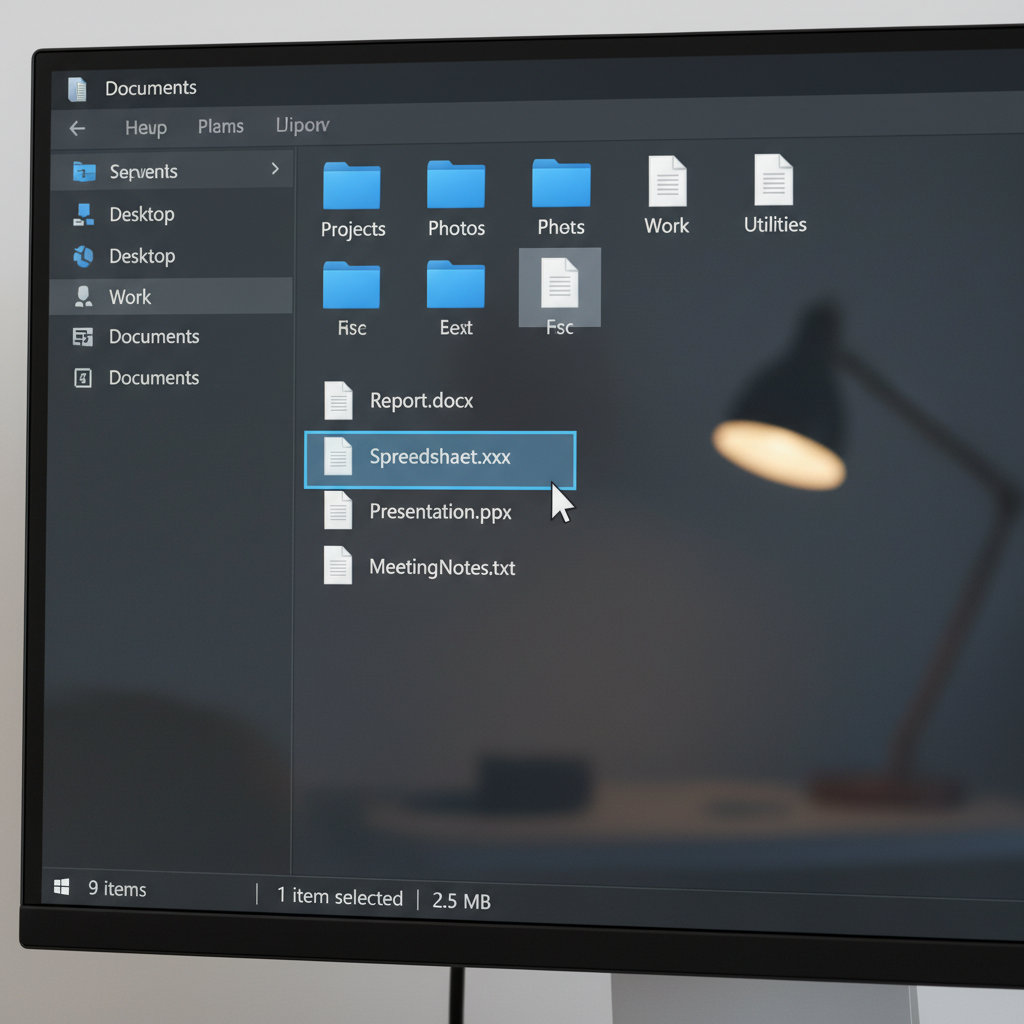 ⚠️ This picture may have spelling mistakes. Trust the words in the lesson.
Important Tips for Saving and Retrieving:
- Save Often! Don't wait until you're finished. Save every 10-15 minutes, especially if you're doing a lot of work. That way, if the computer suddenly turns off, you won't lose too much.
- Choose Good Names! Names like 'MyStory-Draft1', 'MyStory-Final', 'MyStory-ForTeacher' are much better than just 'Document1'.
- Know Your Folders! Try to remember where you saved things. Having a folder for 'Art Projects' and another for 'Writing' can keep things super organized.
- Ask for Help! If you can't find a file, don't worry! Ask your teacher or a grown-up for help. They can often help you search for it.
Conclusion
Saving and retrieving files might seem a little tricky at first, but with practice, it's as easy as putting your toys away and then finding them again later! You've learned that saving keeps your work safe, and retrieving helps you find and open it whenever you need. Keep practicing, and you'll be a file-saving and finding master in no time!
Keep learning, free
Create a free Syllabax account to unlock practice questions and games for this topic.
Visual Learning Enhanced! 🚀
To help you master this topic, we use Advanced Syllabax AI to generate detailed diagrams and visual models.
Note on Visuals: The AI sometimes makes spelling errors in image labels. Please refer to the lesson text for the correct terminology.