Files and Folders: Organizing Work
Watch this topic in 60 seconds
Free preview · Lesson 1
Understanding Files and Folders: Organizing Work
Files and Folders: Your Digital Backpack for Organizing Work!
Hello, young explorers! Imagine your school desk is super messy with papers, pencils, crayons, and notebooks all mixed up. How hard would it be to find your math homework? Very hard, right? Well, your computer is a bit like that desk, but instead of physical papers, it has digital 'stuff' called files. And just like you use folders and boxes to organize your school supplies, your computer uses folders to keep your files neat and tidy!
What is a File? (Your Digital Piece of Paper)
Think of a file as one piece of paper where you write or draw something. On your computer, a file is where you save your digital work. It could be:
- A drawing you made in a painting program.
- A story you typed in a writing program.
- A fun game you saved.
- A photo you took with a camera.
Just like each piece of paper has a different drawing or story, each file on your computer holds a different piece of digital information. Every time you save something you create on the computer, you are making a new file!
Analogy Time: A file is like a single sheet of paper in your art class. One sheet has your awesome drawing of a dinosaur, another has your favorite poem, and another has your list of spelling words. Each sheet is a unique piece of work.

What is a Folder? (Your Digital Organizer Box)
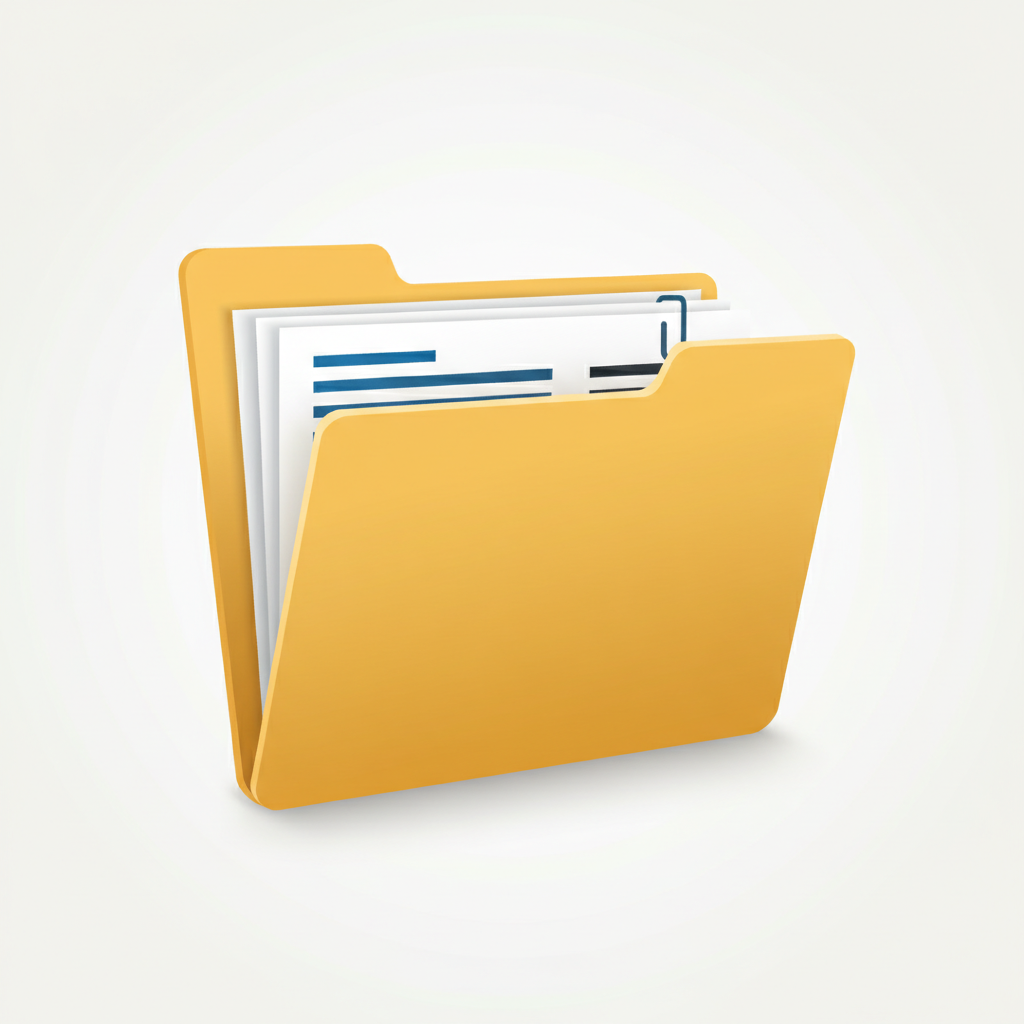
Now, what happens if you have lots and lots of these papers (files)? They can get lost, right? That's where folders come in! A folder on your computer is like a special box or a physical folder that you use to store many related files together.
Instead of having all your drawings, stories, and games scattered everywhere, you can put all your drawings in a folder called "My Drawings," all your stories in a folder called "My Stories," and all your games in a folder called "My Games."
Analogy Time: Imagine you have a backpack. Inside your backpack, you have a red folder for math, a blue folder for reading, and a green folder for art. Each of these physical folders helps you keep your papers (files) for one subject together. Your computer folders work just like that!
Why Do We Need Files and Folders?
Organizing with files and folders is super important for many reasons:
- Find Things Easily: If all your toys are in one giant pile, it's hard to find your favorite action figure. But if you have a box for cars, a box for blocks, and a box for action figures, you can find what you want quickly! Files and folders do the same for your computer.
- Keep Things Tidy: A tidy room is a happy room! A tidy computer is a happy computer. When your files are organized, your computer feels less cluttered.
- Don't Lose Your Work: When things are organized, they are less likely to get lost. You'll know exactly where your important school project is saved.
How Do We Use Them? (Putting Things Away Neatly)
Creating a Folder
Imagine you want to start a new project, like making a special animal report. The first thing you might do is create a new folder for it, just like you might grab a new empty folder for school papers. Here's how you might do it (steps can vary slightly depending on your computer, but the idea is the same!):
- Find an empty space on your computer desktop or in another folder.
- Right-click your mouse (or use two fingers on a trackpad).
- Look for an option that says "New" and then "Folder."
- Click on "Folder." A new folder will appear, and you can type a name for it, like "Animal Report Project."
Naming Files and Folders
Giving your files and folders good, clear names is like putting a label on your boxes. If you name a folder "Stuff," it won't help you find anything! But if you name it "Math Homework - October," you'll know exactly what's inside.
- Be Specific: Instead of "Drawing," try "My Dinosaur Drawing - May 2023."
- Keep it Simple: Don't use super long names.
- No Special Characters: Try to stick to letters, numbers, and spaces. Avoid symbols like *, ?, /, etc.
Moving Files into Folders
Once you've created a file (like your animal report document) and created a folder (like "Animal Report Project"), you'll want to put the file inside the folder. This is like picking up your finished drawing and putting it into your art folder.
Usually, you can click on a file and drag it with your mouse right into the folder you want it to go into. It's like dragging a toy car into its designated toy box!
Think of Your Computer as a Digital Library
Imagine your school library. It has thousands of books (files). But they aren't just thrown all over the floor! They are organized onto shelves (folders) by subject (like "Science Books" or "Story Books") and then by author. This helps you find the exact book you're looking for very quickly. Your computer works the same way. By organizing your files into folders, you're becoming a great digital librarian!
So, remember: Files are your digital work, and folders are your digital organizers. Use them to keep your computer neat, tidy, and easy to use!
Keep learning, free
Create a free Syllabax account to unlock practice questions and games for this topic.
Visual Learning Enhanced! 🚀
To help you master this topic, we use Advanced Syllabax AI to generate detailed diagrams and visual models.
Note on Visuals: The AI sometimes makes spelling errors in image labels. Please refer to the lesson text for the correct terminology.