Visual Programming with Blocks
Watch this topic in 60 seconds
Free preview · Lesson 1
Understanding Visual Programming with Blocks
Welcome to Visual Programming with Blocks!
Imagine you want to tell a robot exactly what to do. How would you do it? You'd give it instructions, right? That's what programming is all about: giving instructions to a computer or a device to make it do what you want. But sometimes, writing those instructions using complicated words and symbols can be tricky, especially when you're just starting out.
What is Visual Programming? Think LEGOs for Computers!
This is where Visual Programming with Blocks comes in! Instead of typing long lines of code, you get to use colorful, snap-together blocks – just like LEGOs! Each block is a tiny instruction or a command. When you connect them in a specific order, you create a whole set of instructions, or a "program," that a computer can understand and follow.
Think about building a magnificent castle with LEGOs. You pick different shapes and colors of bricks, and you snap them together to form walls, towers, and roofs. In visual programming, you pick different blocks, each representing an action (like "move forward" or "make a sound"), and snap them together to build a sequence of commands for your digital project.
Why Blocks Are Awesome for Beginners (and Pros Too!):
- Easy to See: You can visually understand what your program is doing just by looking at the blocks.
- Hard to Make Mistakes: Blocks often only snap together in ways that make sense, preventing common errors that happen when typing code.
- Fun and Creative: It feels like playing a game while you're actually learning powerful computer science concepts.
The Building Blocks of Programming: Your Instruction Set
Let's dive into some of the basic types of blocks you'll encounter. Each type helps you do something different, like different tools in a toolbox.
1. Action Blocks: The "Do This" Commands
These blocks tell your character (often called a "sprite" or an "actor") or object to perform a specific action. They are like giving a direct command to a pet.
- Examples: "move 10 steps", "turn 90 degrees", "say 'Hello!'", "play sound 'Meow'".
- Analogy: Imagine telling your friend, "Take 5 steps forward," or "Wave your hand." These are immediate actions.
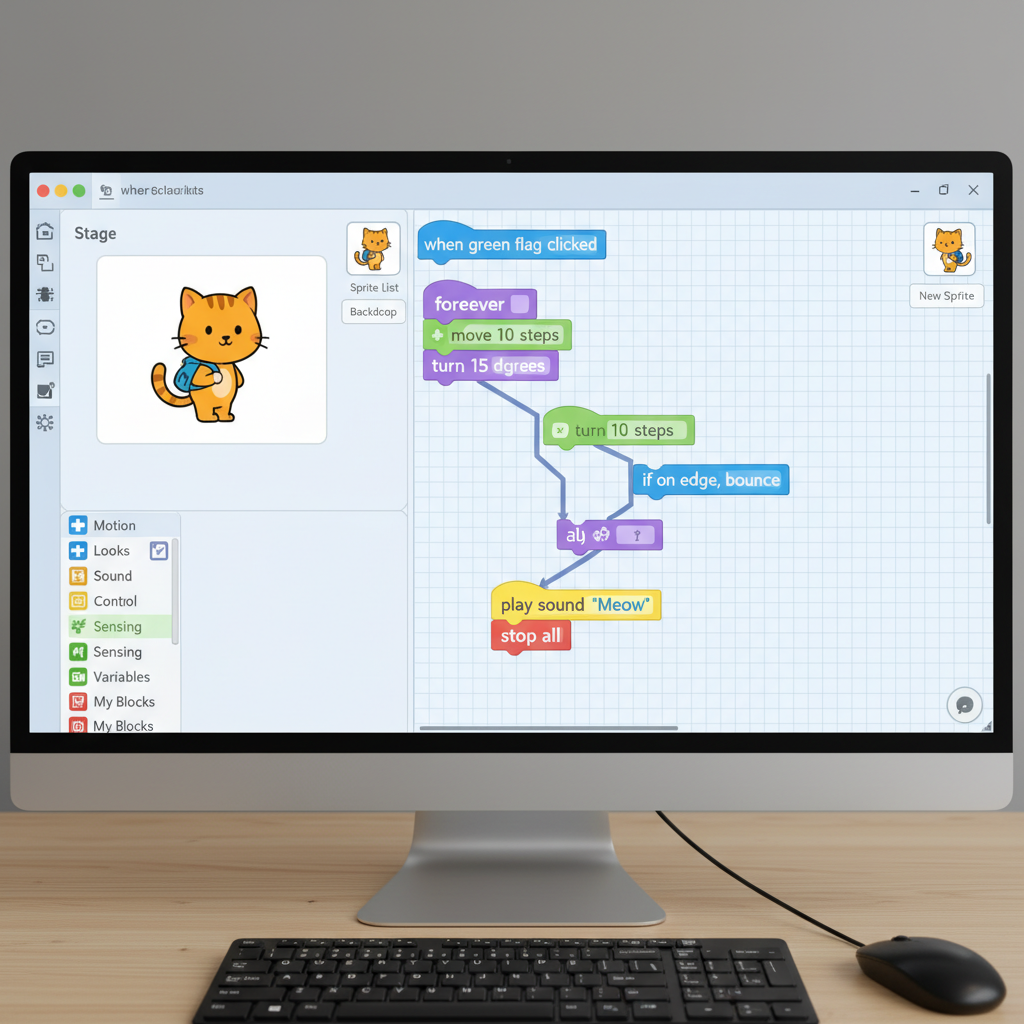 ⚠️ This picture may have spelling mistakes. Trust the words in the lesson.
2. Event Blocks: The "When This Happens" Triggers
These blocks are super important because they tell your program *when* to start or *when* to do something. They are like a doorbell for your program – when someone rings it, the program starts doing its job.
- Examples: "when green flag clicked", "when space key pressed", "when this sprite clicked".
- Analogy: Think about a remote control for a TV. Pressing the "power" button (an event) tells the TV to turn on (an action). Or, think about a traffic light. When it turns green (an event), cars start to go (an action).
3. Control Blocks: The "How Things Happen" Managers
These blocks are like the conductor of an orchestra, managing the flow and timing of your program. They allow your program to make decisions and repeat actions.
Loops: Doing Things Over and Over
Sometimes you want your character to do the same thing many times. Instead of snapping 10 "move 10 steps" blocks, you can use a loop!
- Examples: "repeat 10 times", "forever".
- Analogy: If you had to write "I will not talk in class" 100 times, you wouldn't write each one out separately if you could just say "repeat this phrase 100 times." Or, think of a song chorus – it repeats several times throughout the song.
Conditionals: Making Decisions (If This, Then That!)
Programs can be smart! They can make choices based on certain conditions. These blocks let your program ask questions and do different things depending on the answer.
- Examples: "if <condition> then <action>", "if <condition> then <action A> else <action B>".
- Analogy: Imagine deciding what to wear: "If it's raining, then I'll wear a raincoat. Else (otherwise), I'll wear a light jacket." Or, "If you finish your homework, then you can play video games."
4. Sensing Blocks: The "What's Happening Around Me?" Detectors
These blocks allow your program to "sense" things in its environment. They're like the eyes and ears of your program.
- Examples: "touching color?", "key <space> pressed?", "distance to <mouse-pointer>".
- Analogy: Think about playing tag. You "sense" if someone is touching you. Or, a security camera "senses" if there's movement.
5. Variables: Boxes for Storing Information
Sometimes you need your program to remember things, like a score in a game, a player's name, or how many lives they have left. Variables are like little labeled boxes where you can store information that might change.
- Examples: "score", "lives", "player name".
- Analogy: Think of a whiteboard in a classroom where the "current date" is written. That date changes every day, but the space for it (the variable) stays the same. Or, a score counter in a sports game – the "score" box holds a number that goes up and down.
Putting It All Together: Your First Program!
Let's imagine a simple program:
When the green flag is clicked,
Repeat 10 times:
Move 10 steps
Wait 0.5 seconds
Say "I finished!" for 2 seconds.
In block programming, you would find an "Event" block for "when green flag clicked," then a "Control" block for "repeat 10 times." Inside the repeat loop, you'd place an "Action" block for "move 10 steps" and another "Control" block for "wait 0.5 seconds." Finally, after the loop, you'd add another "Action" block for "say 'I finished!' for 2 seconds." See how they snap together logically?
Debugging: When Things Go Wrong (and How to Fix Them!)
Even expert programmers make mistakes! When your program doesn't do what you expect, it's called a "bug." Finding and fixing these bugs is called debugging.
- Analogy: Imagine following a recipe, but your cake doesn't turn out right. You'd go back and check each step: Did I add the right ingredients? Did I bake it for the correct time? Debugging is like being a detective for your code! You look for the missing or incorrect blocks, or blocks that are in the wrong order.
The Power of Visual Programming
Block-based visual programming tools like Scratch, Blockly, or Swift Playgrounds are fantastic for learning the fundamental concepts of computer science. They teach you:
- Problem-Solving: How to break down a big problem into smaller, manageable steps.
- Logical Thinking: How to arrange instructions in a specific order to achieve a goal.
- Creativity: How to build your own games, stories, and animations.
You're not just moving blocks around; you're developing critical thinking skills that are useful in every part of life, not just coding! So go ahead, experiment, and have fun building your digital creations!
Keep learning, free
Create a free Syllabax account to unlock practice questions and games for this topic.
Visual Learning Enhanced! 🚀
To help you master this topic, we use Advanced Syllabax AI to generate detailed diagrams and visual models.
Note on Visuals: The AI sometimes makes spelling errors in image labels. Please refer to the lesson text for the correct terminology.